CRM · Release Notes
What's New in v1.7.0
This release introduces the latest CRM enhancements designed to improve usability, streamline business processes, and provide a more efficient user experience across both the Web CRM and Mobile Application. This release includes new features, functional improvements, and interface enhancements that simplify day-to-day operations and increase overall productivity.
Key highlights include enhanced Field Configuration, Contact & Organisation management improvements, Contract Bulk Upload, Contract Renewal, reorganized navigation menu, About Company information page, and mobile record deletion functionality. Together, these updates provide greater flexibility, reduce manual effort, and make it easier for users to manage CRM data efficiently.
Enhanced Field Configuration
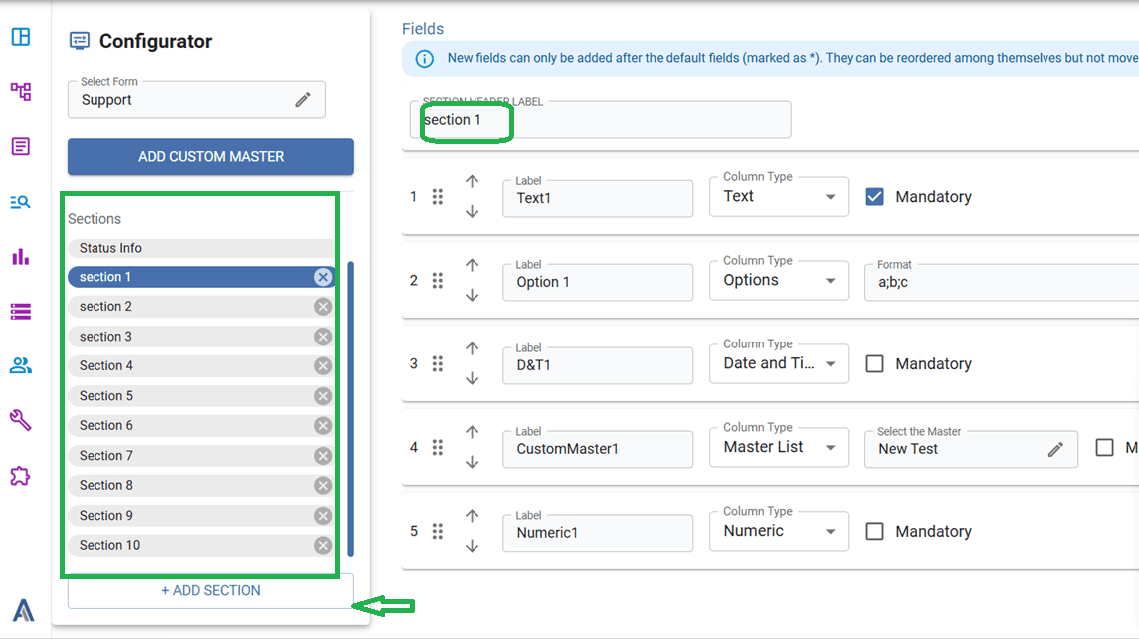
EnhancementField Configuration has been enhanced to allow users to create up to 50 custom fields and organize them into multiple sections based on their business requirements.
Overview
The Field Configuration module has been upgraded to provide greater flexibility in customizing CRM forms. Users can now add up to 50 custom fields and arrange them into different sections, making forms more structured and easier to manage according to their business processes.
The configured sections for modules are also visible in the Mobile application.
Functionality
- Add up to 50 custom fields within a module.
- Create multiple sections to logically group related fields.
- Assign custom fields to the desired section during configuration.
- Organize forms based on department, workflow, or business requirements for improved usability.
- Existing field configuration functionality remains unchanged while providing enhanced customization capabilities.
Example
A company wants to organize its Support Form into separate sections such as:
- Customer Information
- Issue Details
- Service Information
- Internal Notes
Using the enhanced Field Configuration, the administrator can create these sections and add the required custom fields under each one, resulting in a well-organized and user-friendly form.
Contact & Organisation Merge Enhancement
EnhancementThe Contact module has been enhanced to allow users to create and manage both Contacts and Organisations from a single form. Users can now create CRM records and tickets for either an individual Contact Person or an Organisation, with both record types available in Contact selection fields across the CRM.
Overview
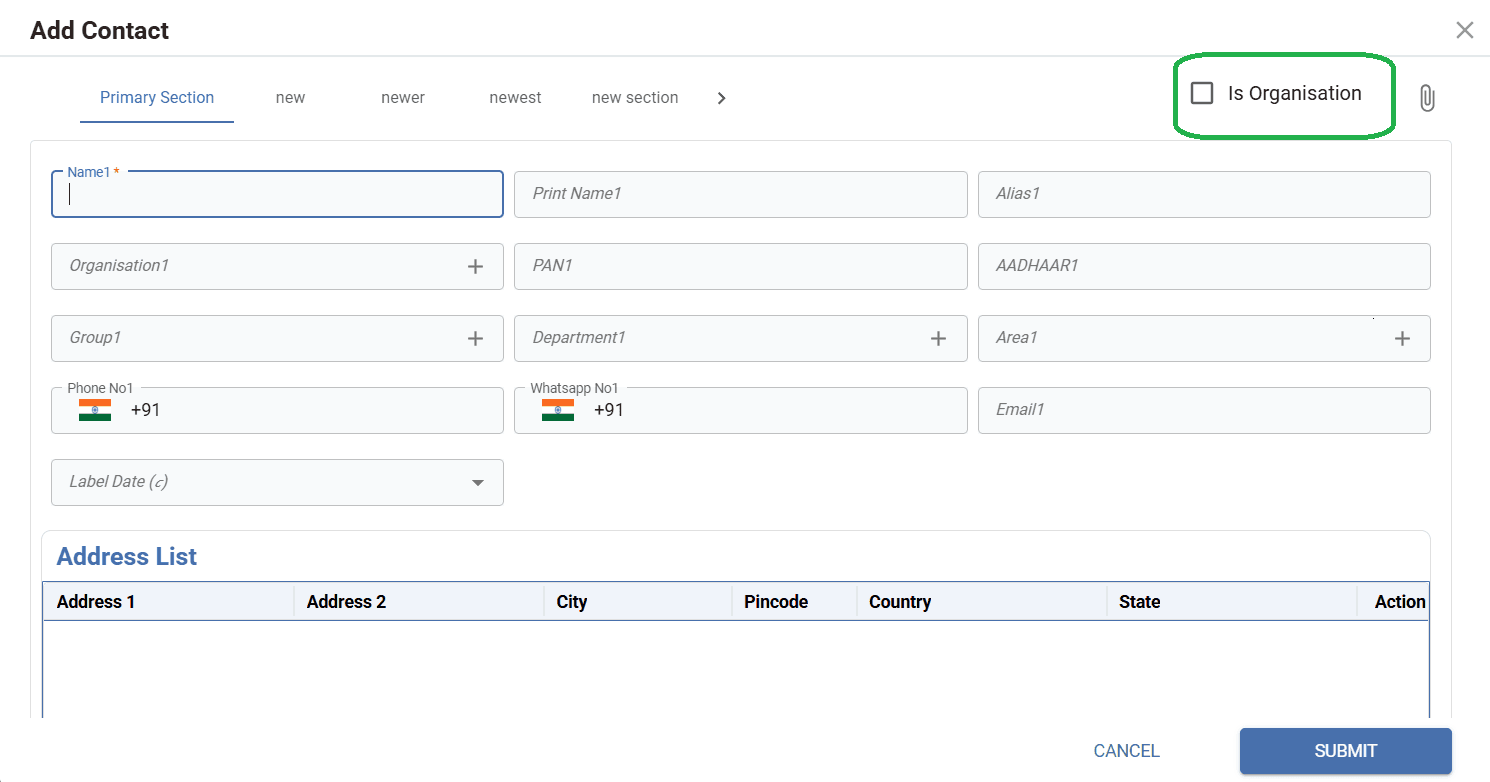
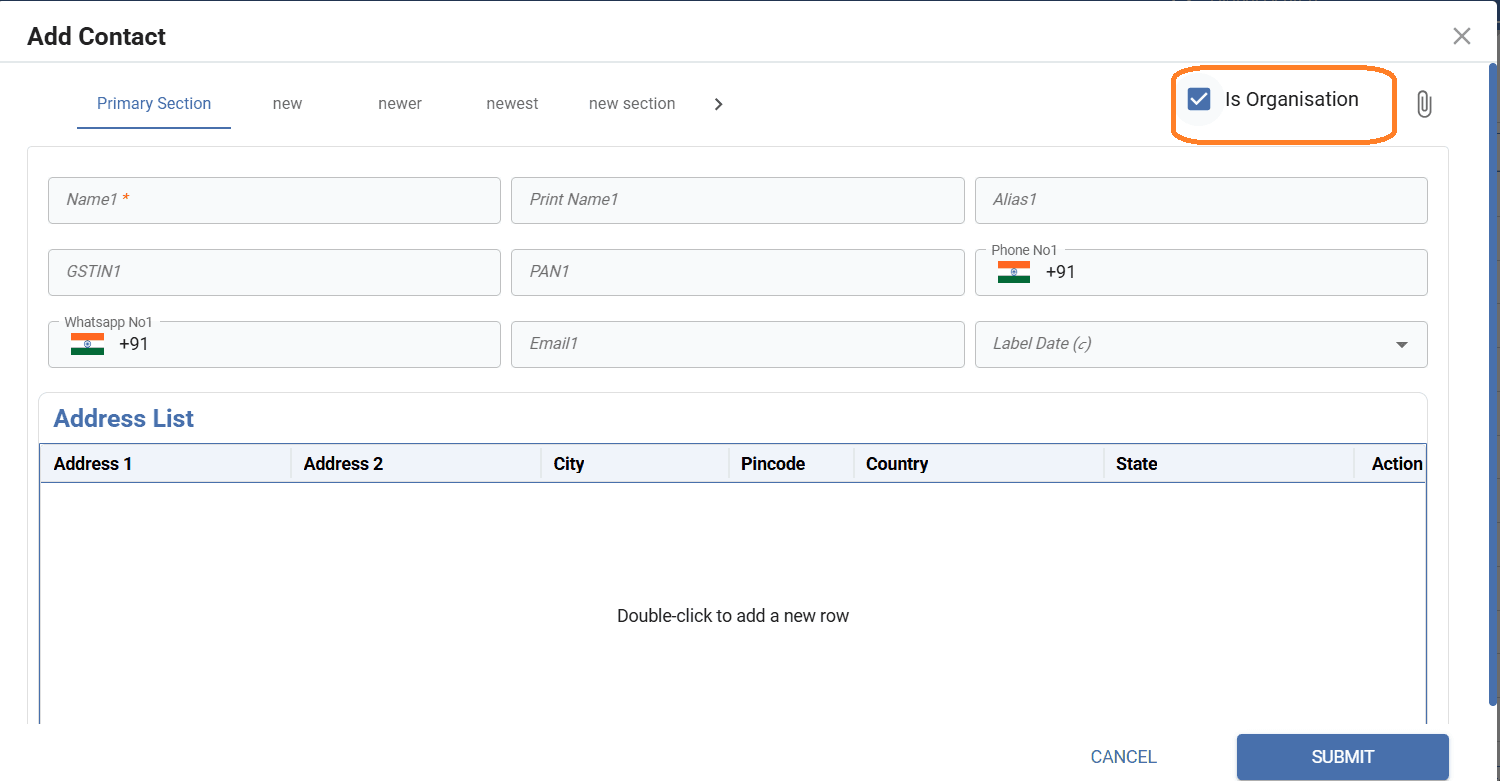
The Contact module has been enhanced to simplify record creation and selection. A new "Is Organisation" checkbox has been added to the Contact form, enabling users to create an Organisation directly from the same form. Additionally, Contact lookup fields across the CRM now display both Contacts and Organisations, eliminating the need to switch between separate modules during data entry. Users can now create tickets and other CRM records by selecting either a Contact Person or an Organisation, depending on their business requirement.
Functionality
- A new "Is Organisation" checkbox has been added to the Contact form.
- When the checkbox is selected, the record is created as an Organisation instead of a Contact.
- Users can create either a Contact Person or an Organisation from the same form.
- Users can create a new Organisation directly from any Contact lookup field by clicking the (+) icon.
- Contact lookup fields across CRM forms now display both Contacts and Organisations in a single dropdown.
- Users can search and select either a Contact or an Organisation wherever a Contact field is available.
- Enquiries, Support Tickets, Tasks, and other CRM records can now be created against either a Contact Person or an Organisation, providing greater flexibility in managing customer interactions.
Example
A sales executive is creating an Enquiry for a new company. Instead of first creating an Organisation separately, they click the (+) icon next to the Contact field, select "Is Organisation", and create the Organisation directly. The Enquiry is then created against the Organisation. Similarly, if the enquiry is for an individual, the executive can create and select a Contact Person from the same form. This allows users to create CRM records and tickets for both individual contacts and organisations without leaving the current screen.
Contract Bulk Upload
NewThe Contract module now supports bulk data upload, allowing users to import multiple contract records at once using an Excel file.
Overview
The Contract module has been enhanced with a Bulk Upload feature, enabling users to upload multiple contract records through an Excel file. This functionality works similarly to the bulk upload feature available in other CRM modules, making contract data migration and record creation faster and more efficient.
Functionality
- A new Upload button has been added to the Contract module.
- Users can download the sample/template file, populate the required contract details, and upload the completed file.
- Multiple contract records can be created in a single upload.
- The system validates the uploaded data and displays appropriate success or error messages.
- The functionality is consistent with the bulk upload process available in other CRM modules, providing a familiar user experience.
Example
A company needs to migrate 200 existing contracts into the CRM. Instead of creating each contract manually, the user downloads the contract upload template, enters the contract details in Excel, and uploads the file using the Upload button. The system processes the file and creates all valid contract records in a single operation.
Contract Renewal
NewThe Contract module now allows users to renew an existing contract by creating a new contract with the existing contract details pre-filled.
Overview
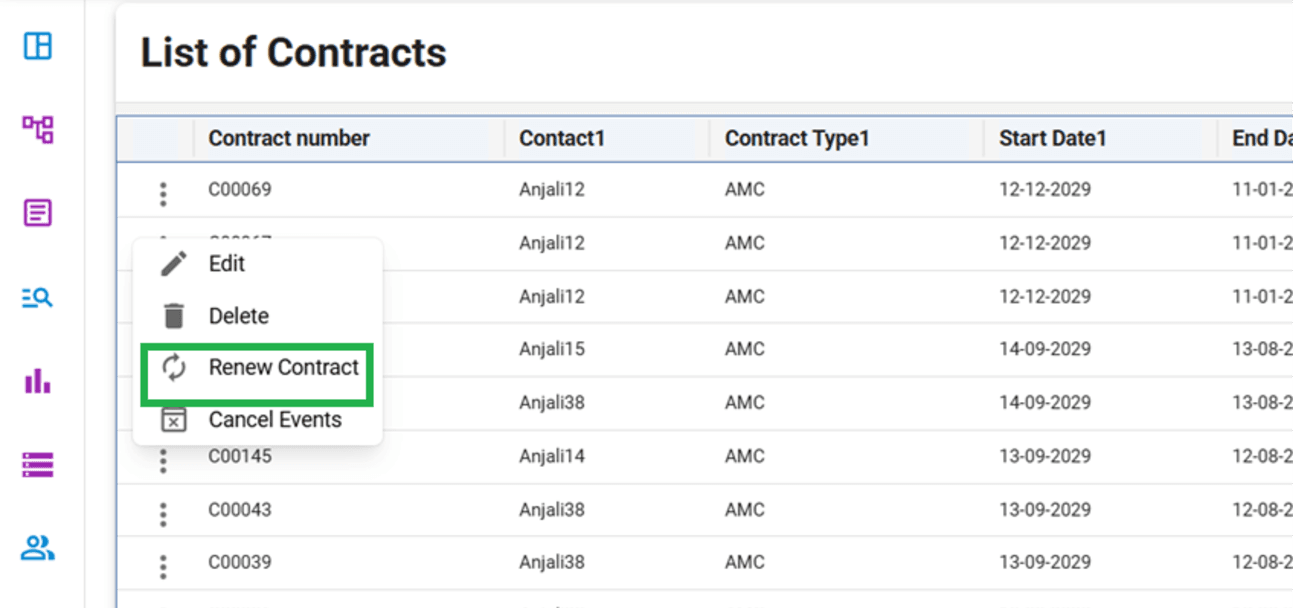
The Contract module has been enhanced with a Renew Contract feature. Users can now renew an existing contract directly from the contract list by selecting the Renew option available in the three-dot (⋮) action menu. The system creates a new contract by copying the details of the selected contract, allowing users to update the contract duration or other required information before saving.
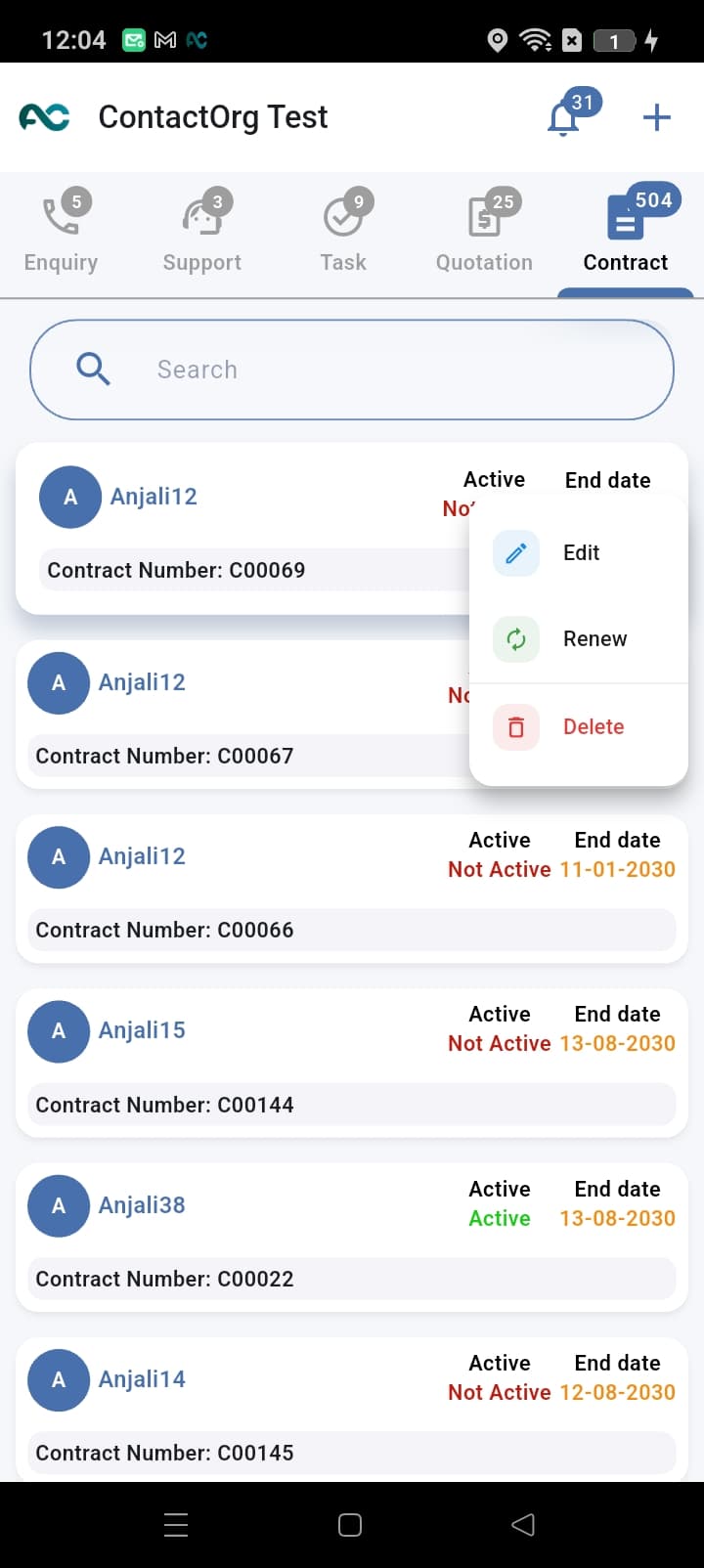
This functionality is also available in the Mobile App, where users can long-press a contract record to access the Renew option and renew the contract directly from their mobile device.
Functionality
- A new Renew option has been added to the three-dot (⋮) action menu of each contract.
- Selecting Renew opens a new contract form with the existing contract details pre-filled.
- Users can modify the contract start date, end date, or any other required details before saving.
- Saving the form creates a new contract record, while the original contract remains unchanged.
- This eliminates the need to manually re-enter contract information for recurring or extended agreements.
Example
A customer's annual service contract is nearing its expiry date. Instead of creating a new contract manually, the user selects Renew from the three-dot (⋮) action menu of the existing contract in the CRM. The system opens a new contract with all the existing details pre-filled. The user updates the contract start date, end date, or any other required information and saves it, creating a new contract while keeping the original contract unchanged.
Similarly, in the Mobile App, the user can long-press the existing contract to access the Renew option. Selecting this option opens the contract with the existing details, allowing the user to update the required information and save it as a new renewed contract directly from the mobile device.
Enhanced Navigation Menu
EnhancementThe left navigation menu has been reorganized into logical categories, making it easier for users to locate CRM modules and features.
Overview
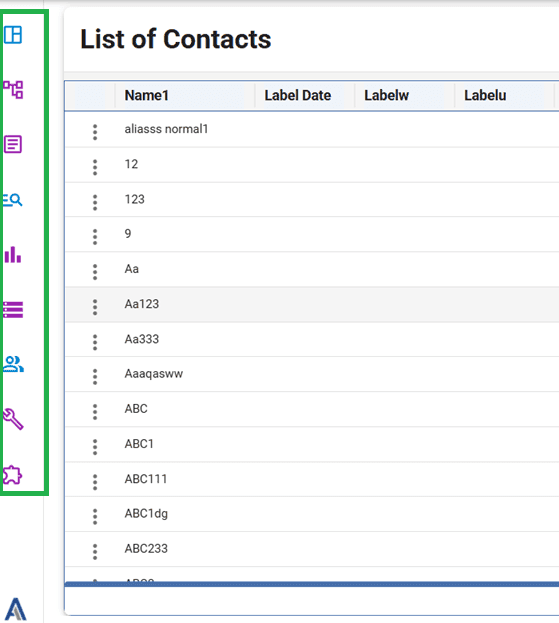
The CRM left-side navigation menu has been redesigned to improve usability and provide a more organized navigation experience. Related modules and features are now grouped into meaningful categories, reducing menu clutter and helping users quickly access the functionality they need.
The menu is now categorized into sections such as:
- Workflows
- Documents
- Plugins
- Configurations
- Call Explorer
- User Management
- Master Data
This improved structure enhances visibility, simplifies navigation, and provides a more intuitive user experience.
Functionality
- Related CRM modules are grouped under dedicated categories.
- Users can quickly locate modules without searching through a long list of menu items.
- Navigation is more organized, improving overall usability.
- The categorized menu provides a consistent and structured interface for both new and existing users.
- Existing module functionality remains unchanged; only the menu organization has been enhanced.
Example
Previously, users had to scroll through a long list of menu items to find a specific feature such as Executive Master, Field Configuration, or Plugin Dashboard. With the enhanced navigation menu, these modules are grouped under categories like Master Data, Configurations, and Plugins, allowing users to locate and access them more quickly and efficiently.
About Company Dialog
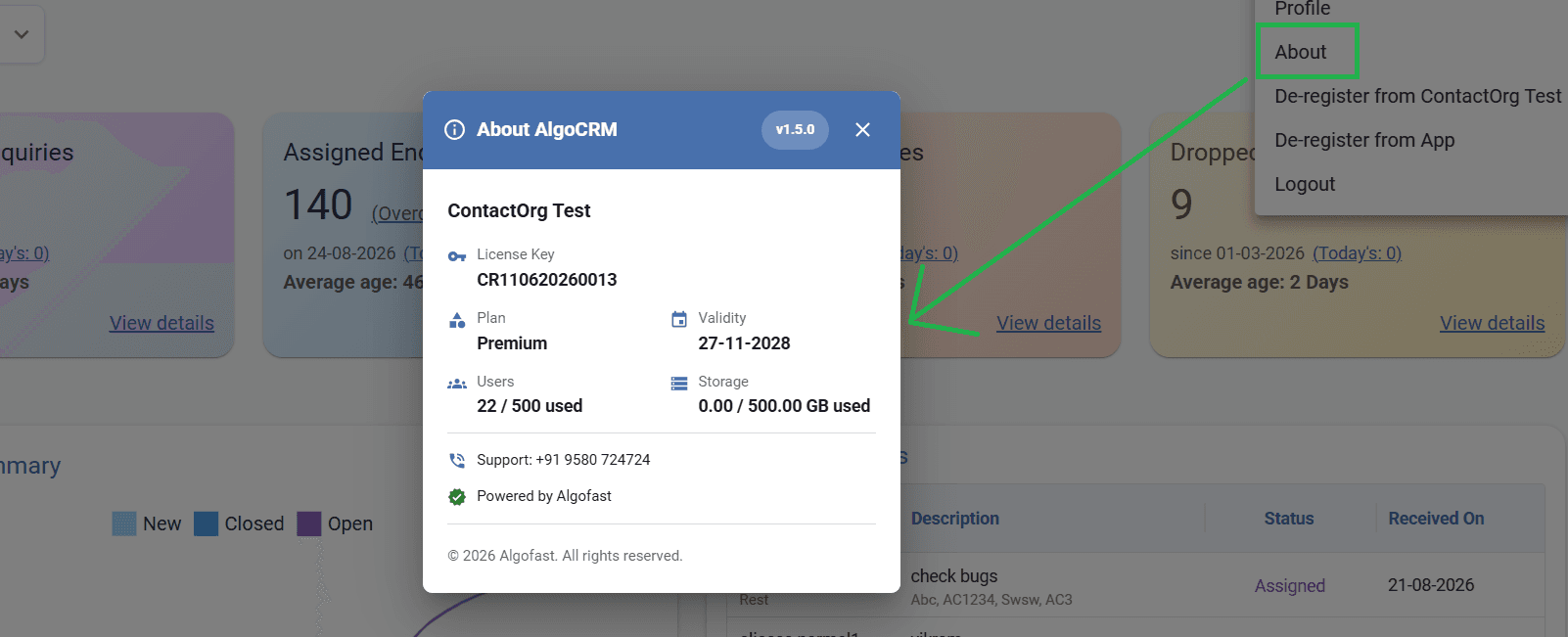
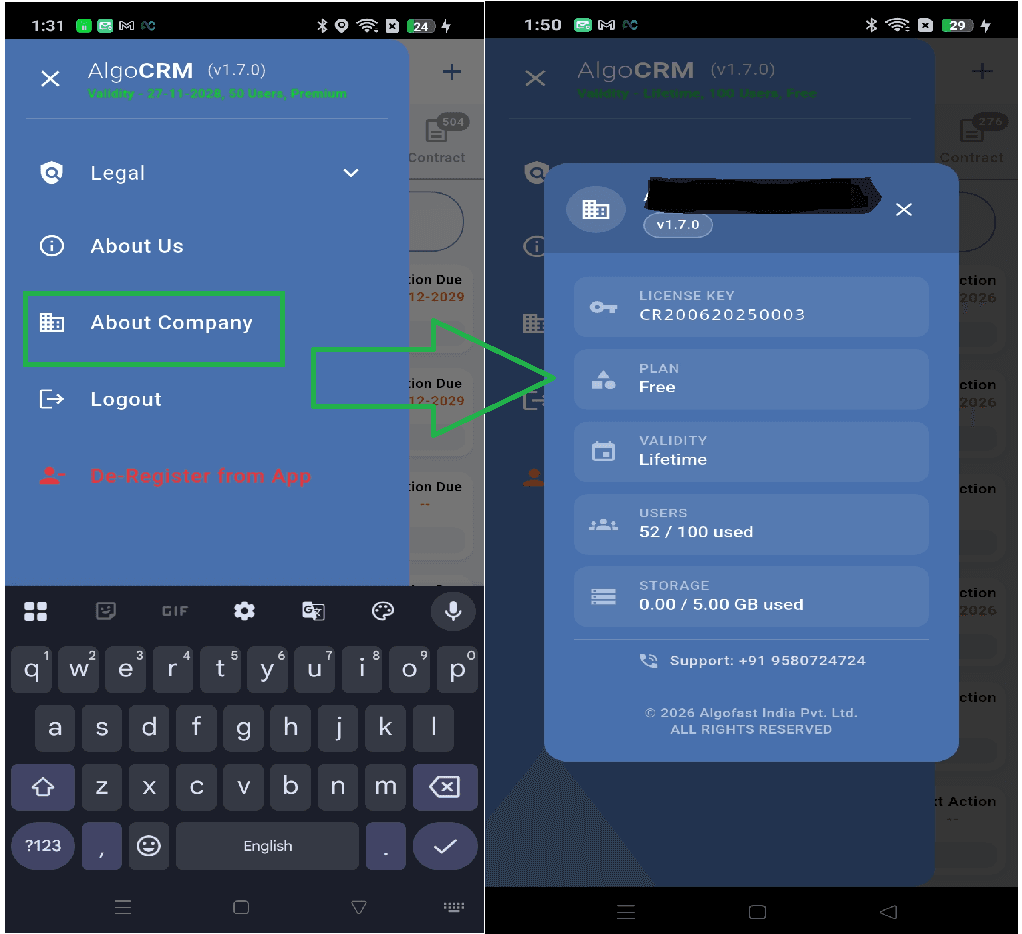
NewA new About Company section has been introduced in both the Web CRM and Mobile Application, providing users with a centralized view of their organization's subscription and account information.
Overview
A new About Company page has been added to the Web CRM and Mobile Application to provide users with quick access to important organization and subscription details. This section displays key information such as the License Key, Subscription Plan, License Validity, User Count, Storage Utilization, and Support Contact Details. Users can access this feature from the Profile/Logout menu, enabling them to easily review their account information and subscription status without contacting the system administrator.
Delete Records in Mobile Application
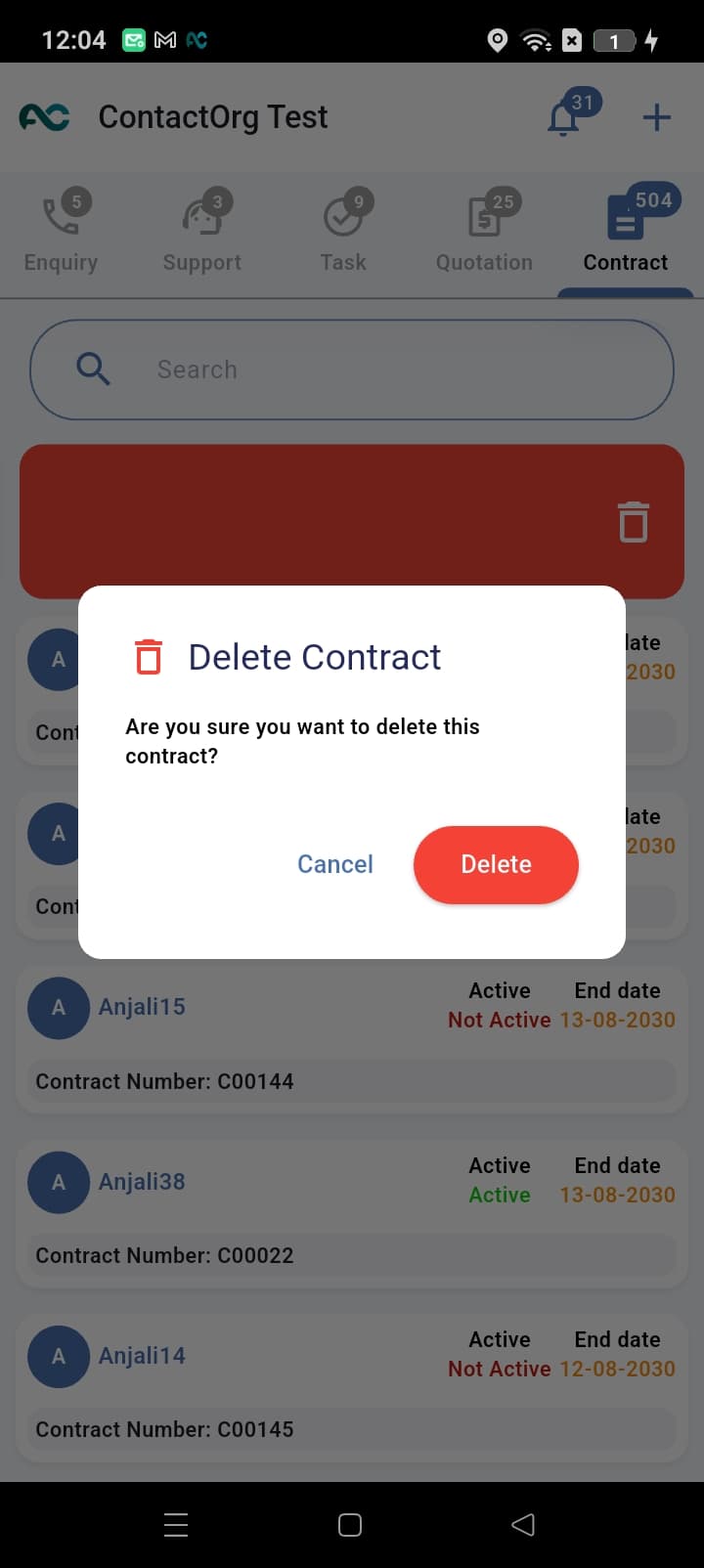
EnhancementA Delete option has been introduced in the Mobile Application, allowing users to delete Enquiries, Support Tickets, Tasks, and Contracts using a simple swipe gesture.
Overview
The Mobile Application has been enhanced with a Delete functionality for Enquiries, Support Tickets, Tasks, and Contracts. Users can now delete a record by swiping the desired item to the left, which reveals the Delete option. This gesture-based interaction provides a faster and more intuitive way to manage records directly from the mobile application while maintaining a clean and user-friendly interface.
WhatsApp Chatbot Settings – Enable Contact Creation
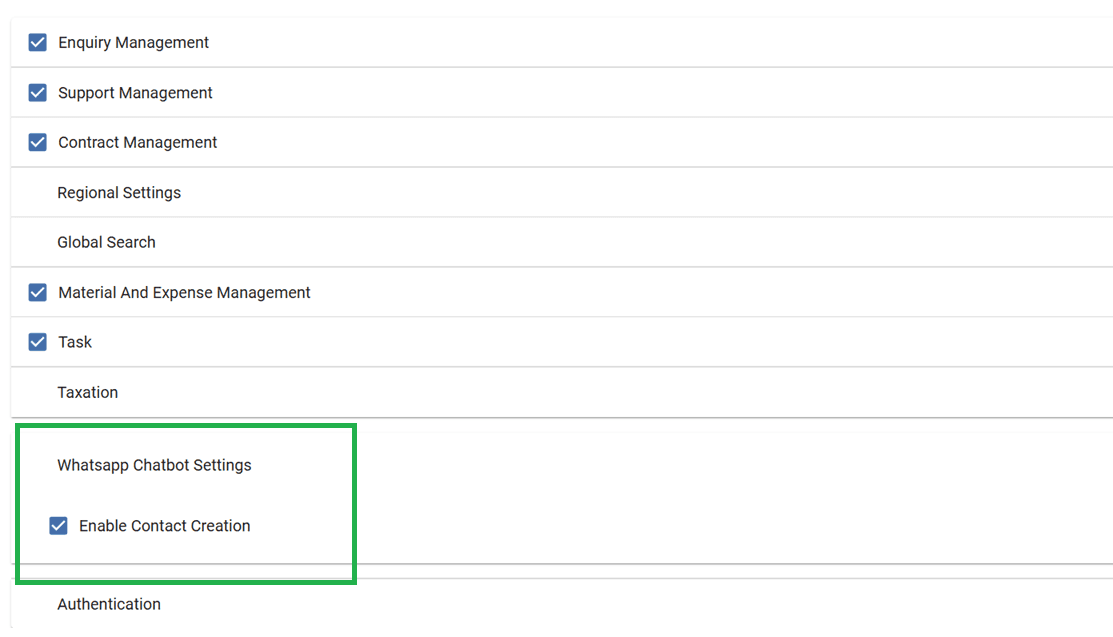
NewIntroduced a new "Enable Contact Creation" setting in WhatsApp Chatbot Settings to control whether unregistered users can self-register as Contact Persons through WhatsApp.
Overview
A new configuration has been introduced in the WhatsApp Chatbot Settings module to provide administrators with control over how the chatbot handles messages from unknown WhatsApp numbers.
The Enable Contact Creation setting determines whether users who are not associated with any existing Enquiry or Support record can register themselves as a new Contact Person through the WhatsApp chatbot.
This feature improves flexibility for organizations by allowing them to choose between:
- Allowing new users to register themselves through WhatsApp, or
- Restricting chatbot access exclusively to existing registered contacts.
Functionality
When "Enable Contact Creation" is Enabled (Checked)
- The chatbot verifies whether the incoming WhatsApp number is linked to an existing Enquiry or Support.
- If the number is already registered, the chatbot continues the conversation as usual.
- If the number is not registered, the chatbot allows the user to register as a new Contact Person.
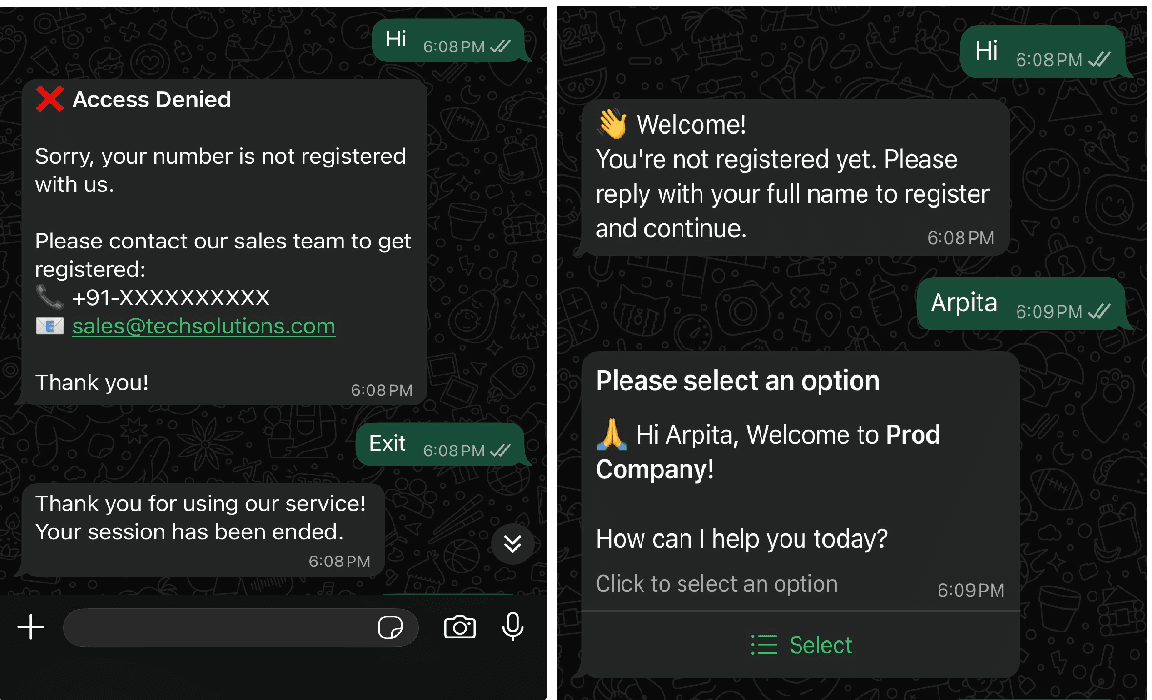
- The chatbot sends the following message: "You're not registered yet. Please reply with your full name to register and continue."
- After the user provides their full name, a new Contact Person is created in the CRM, allowing the conversation to continue.
When "Enable Contact Creation" is Disabled (Unchecked)
If the Enable Contact Creation checkbox is not selected:
- The chatbot checks whether the incoming WhatsApp number is associated with an existing Enquiry or Support.
- If the number is registered, the chatbot continues the conversation normally.
- If the number is not registered, the chatbot blocks access and does not create a new Contact Person.
- The chatbot responds with the following message: "Access Denied"
This configuration ensures that only existing CRM contacts can interact with the WhatsApp chatbot.