
CRM · Release Notes
What's New in v1.5.0
Welcome to the latest CRM release. This release focuses on improving overall system efficiency, flexibility, and user experience. It introduces enhanced configuration capabilities, better workflow control, and more robust integration support. Several usability improvements and interface refinements have also been implemented to ensure smoother operations and greater consistency across the platform.
Task Bucket Integration
NewEnable users to create and apply predefined task groups (buckets) to automatically generate multiple tasks in Enquiry, Support, and Contract workflows.
Overview
The Task Bucket feature allows users to define a set of tasks grouped under a single bucket and reuse them across different modules like Enquiry, Support, and Contract. This reduces manual effort and ensures consistency in task creation.
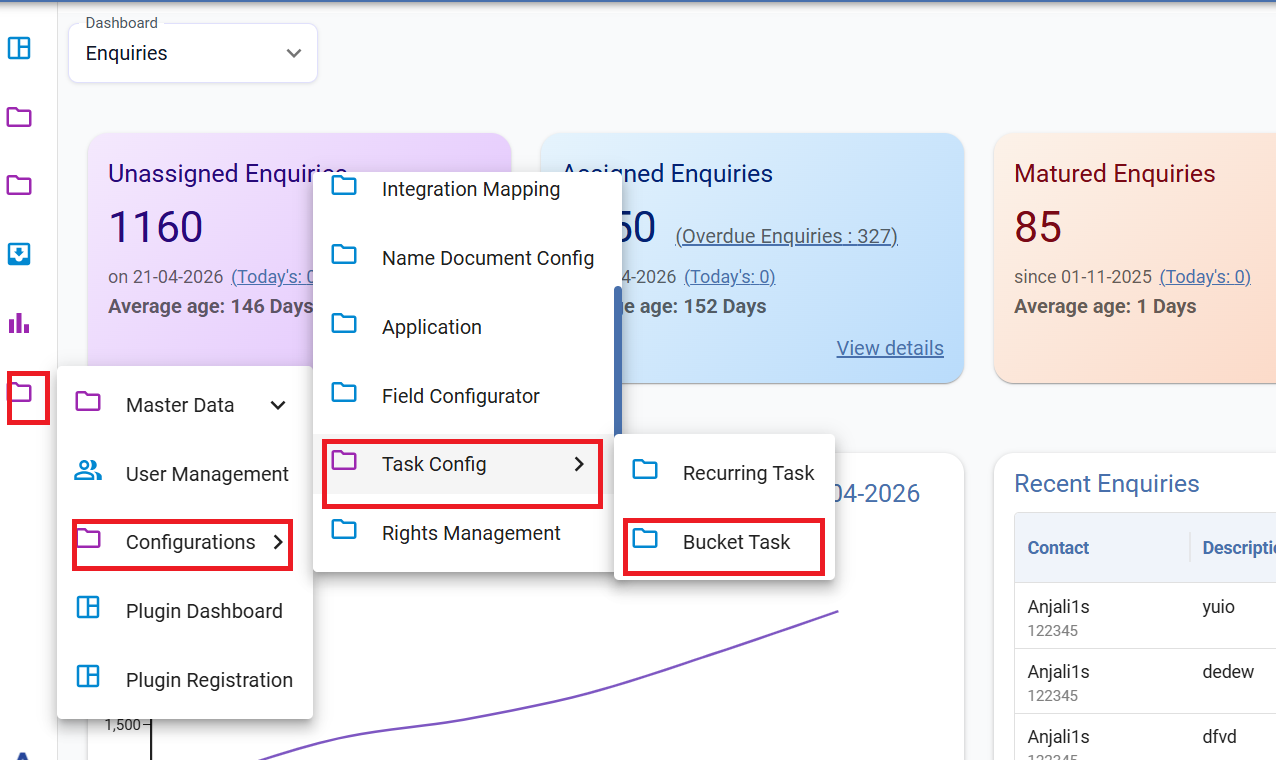
Users can configure buckets from the Task Config → Bucket List section. Each bucket contains multiple task entries with details such as Description, Assign To, and Remarks.
Once a bucket is applied and the form is submitted, all associated tasks are automatically created in the Task entity. These tasks remain unchanged even if the original bucket configuration is modified later.
Additionally, this feature is also available in the mobile application, where users can add bucket-based tasks either by selecting tasks associated with a stage, or clicking on the "Add Bucket" button.
Functionality
1. Bucket Creation
- Go to Task Config → Bucket List
- Click "+" to create a bucket
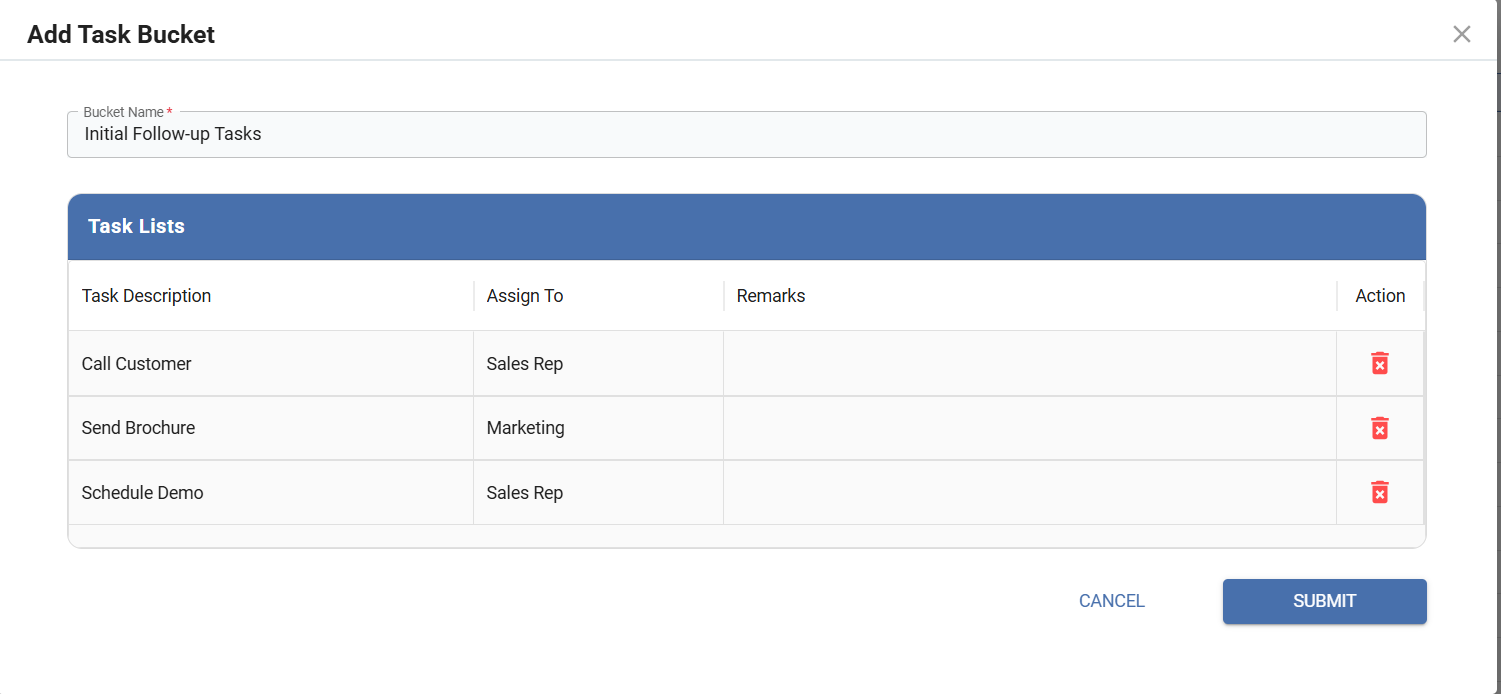
- Add tasks with Description, Assign To, and Remarks
- Save for reuse
2. Methods to Add Bucket
- Manual: Add bucket from Integrated Task in Enquiry/Support/Contract — on submit, all bucket tasks are auto-created
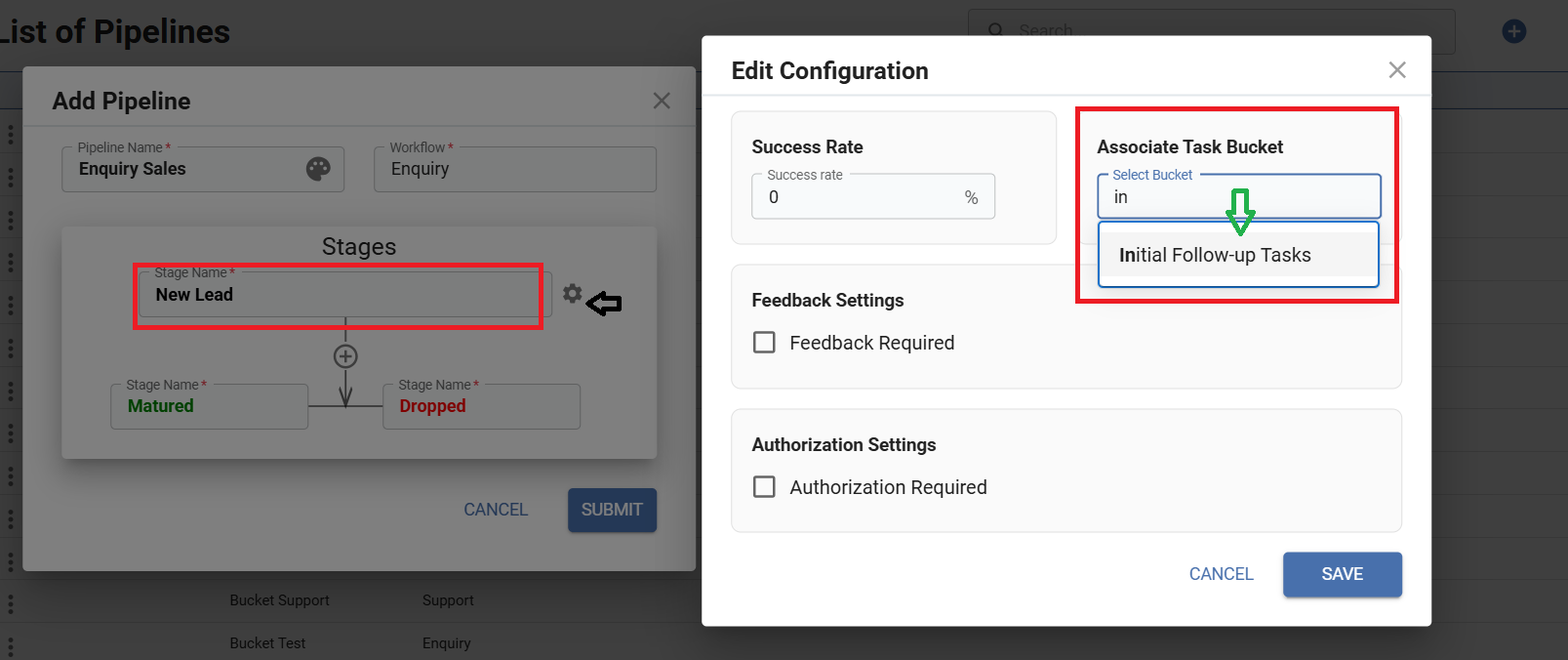
- Stage-Based: Associate bucket with a pipeline stage — bucket tasks are added when that stage is applied
Example
Use Case: Sales Enquiry Process
- Admin creates a bucket named "Initial Follow-up Tasks" with: 1.Call Customer → Assign To: Sales Rep 2.Send Brochure → Assign To: Marketing 3.Schedule Demo → Assign To: Sales Rep
- This bucket is either manually added while creating an Enquiry, OR linked to the "New Lead" stage in pipeline
- When a new Enquiry is created and submitted: All 3 tasks are automatically generated in Task module
- Later, if admin modifies the bucket (e.g., adds a new task): Existing enquiries remain unchanged — only future applications will reflect the updated bucket
Integration Mapping
IntegrationEnable seamless integration of external lead sources like IndiaMART and Google Lead Forms with CRM through configurable field mapping.
Overview
The Integration Mapping feature allows users to connect third-party platforms such as IndiaMART and Google Lead Forms with the CRM system. It ensures that incoming lead data is automatically mapped and created as Enquiry records without manual intervention.
This feature is available under: Administration → Configuration → Integration Mapping.
IndiaMART data flow remains unchanged from the previous release; this update only adds visibility in the Integration Mapping menu to show which IndiaMART fields are mapped to corresponding CRM fields. There are two types of mappings: IndiaMART Mapping (Predefined) and Google Lead Mapping (Custom Configurable).
Functionality
1. IndiaMART Mapping (Predefined)
- CRM comes with 15 pre-mapped fields already configured with IndiaMART fields
- No manual setup is required from the user side
- When IndiaMART sends lead data via API, data is automatically received by CRM and mapped fields populate corresponding fields in the Enquiry entity
2. Google Lead Mapping (Custom Configurable)
- Users can integrate Google Lead Forms with CRM
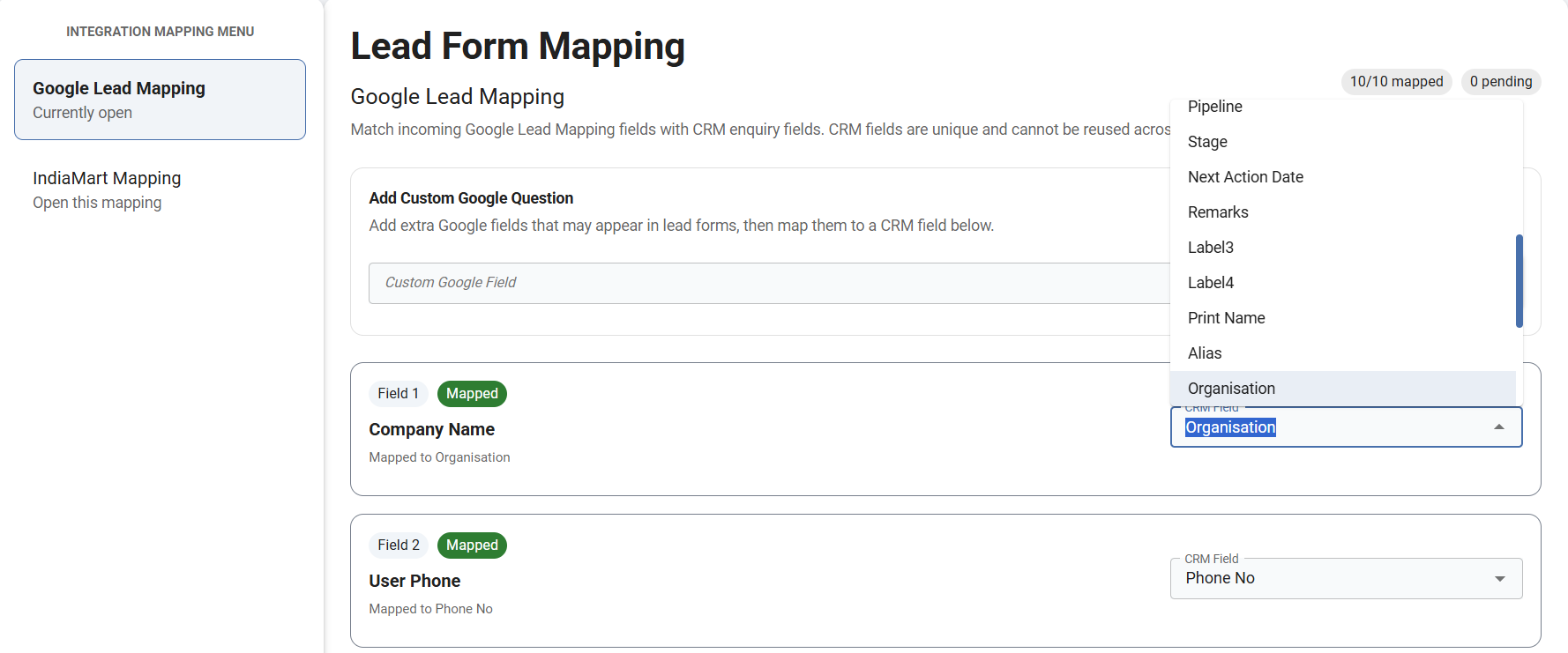
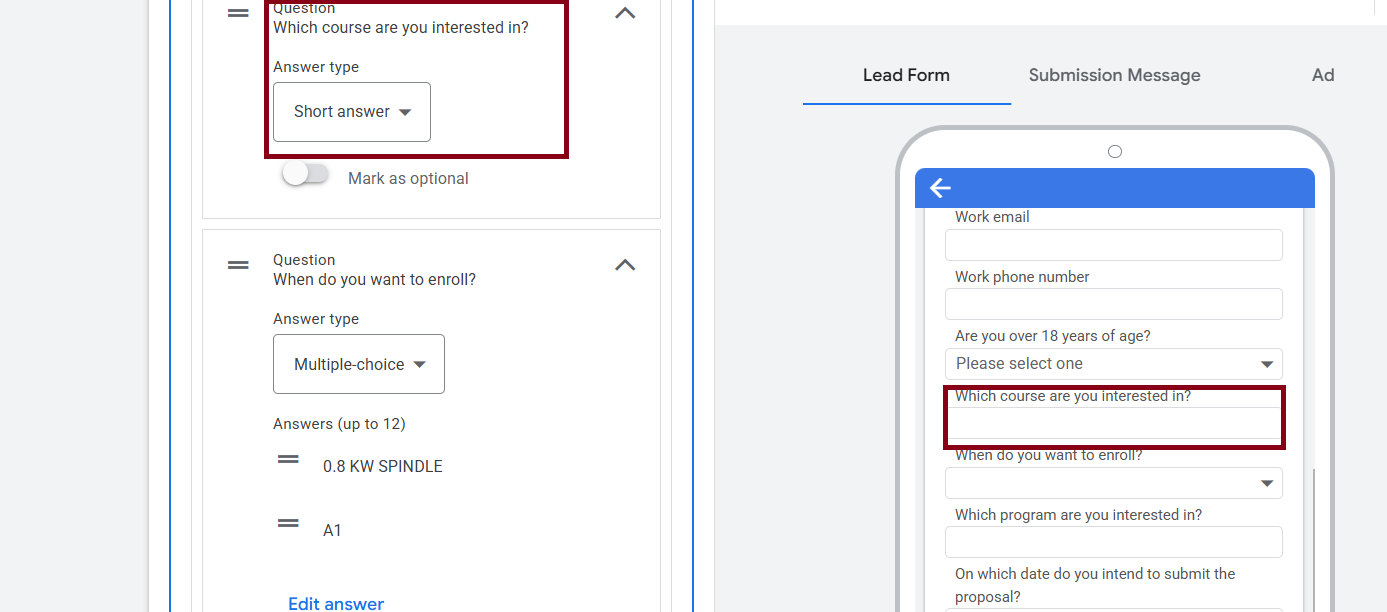
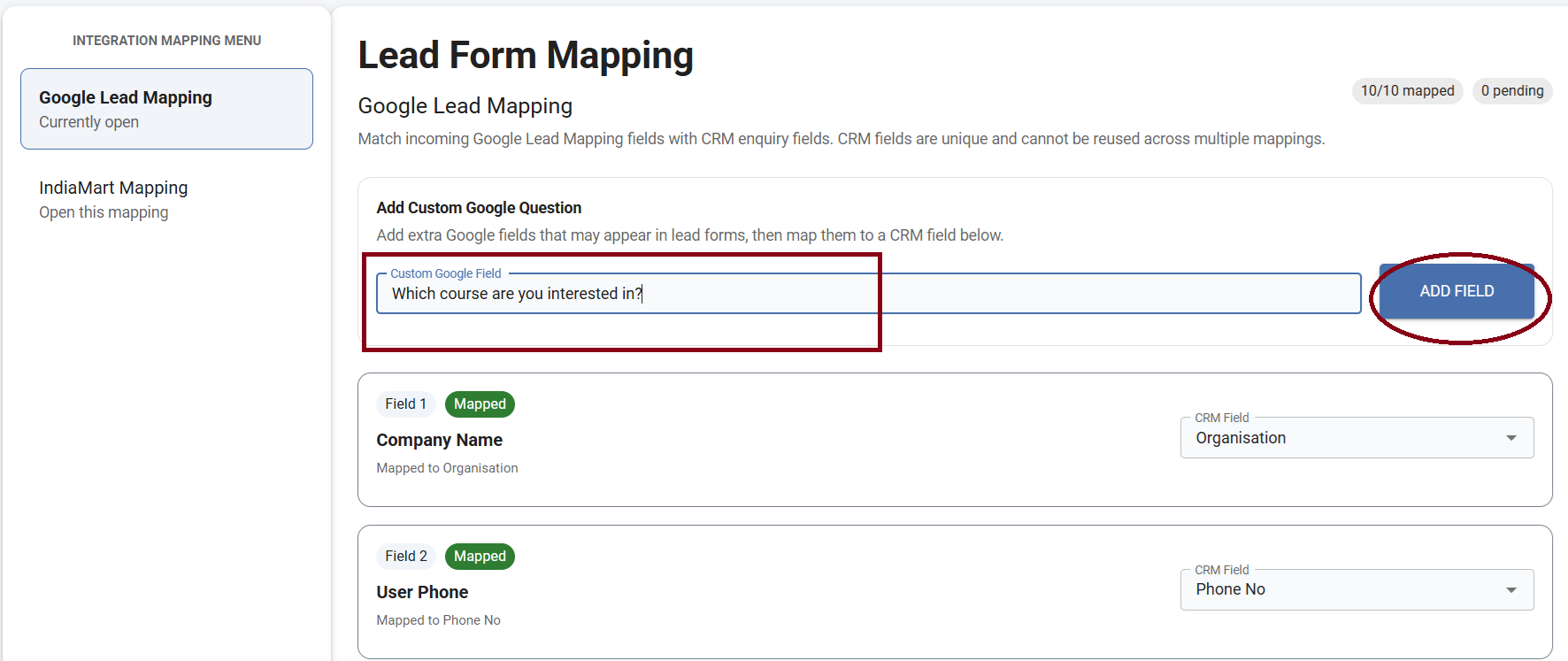
- Requires mapping of Google Form fields with CRM Enquiry fields
- Users can map default fields as per requirement, select custom questions from the form, and map them to any relevant CRM fields
Google Lead Integration Flow
- User creates a Google Lead Form
- CRM provides an API Endpoint (Webhook) and API Key
- User configures webhook in Google platform
- In CRM: Navigate to Google Lead Mapping and map Google fields → CRM fields
- When a lead is submitted in Google Form, the API is triggered, data is pushed to CRM, and a new Enquiry is created with mapped values
Example
Use Case: Google Lead Campaign
- Marketing team creates a Google Form with fields: Name, Email, Phone, Budget (Custom Question), Preferred Location (Custom Question)
- In CRM (Google Lead Mapping): Name → Customer Name, Email → Email ID, Phone → Contact Number, Budget → Budget Field (Custom CRM Field), Preferred Location → Location Field
- When a user submits the form: A new Enquiry is created automatically and all mapped fields are populated accordingly
Named Document Configuration
EnhancementCentralized configuration of named documents across modules with support for attachment and notification via external file URLs.
Overview
The Named Document feature has been enhanced and moved to a centralized master configuration under: Administration → Configuration → Named Document Config.
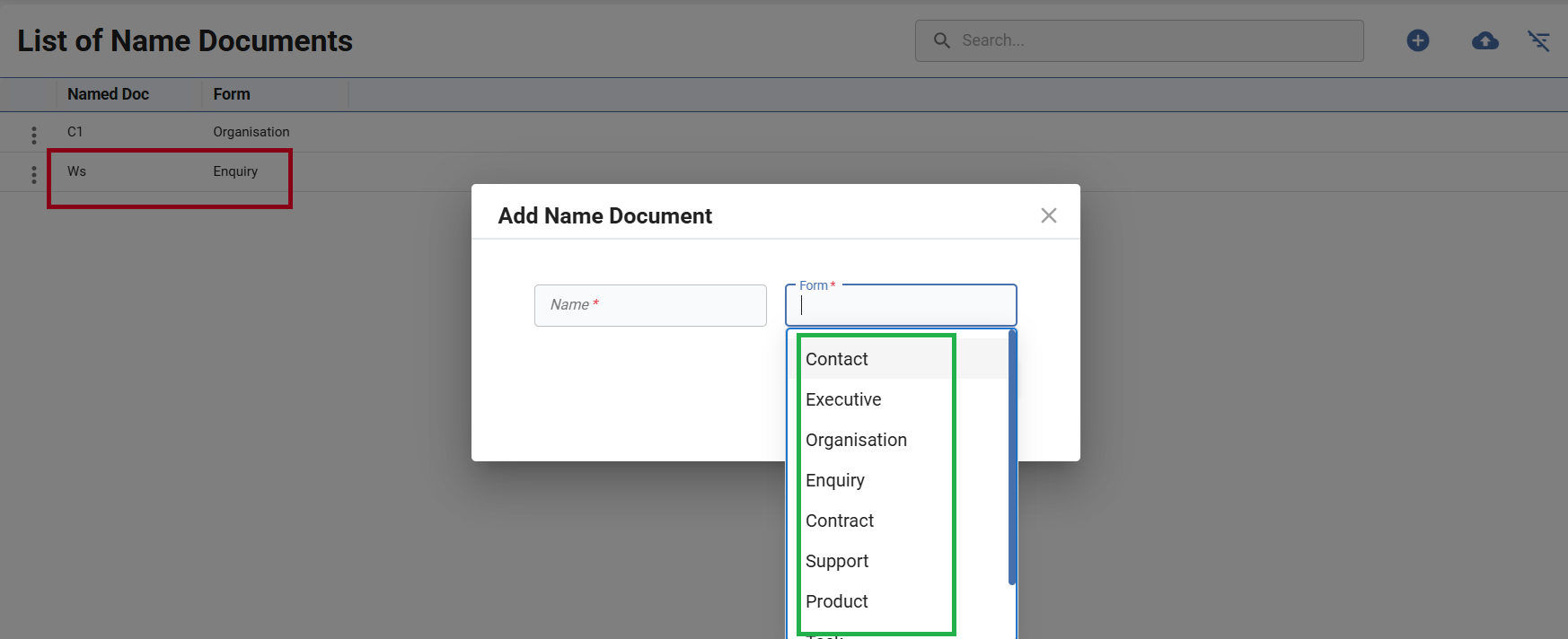
This update allows users to define and manage named documents module-wise (e.g., Enquiry, Support, Task, Company, Organization, Product, Executive, etc.). Users can dynamically add or delete document types as per business needs.
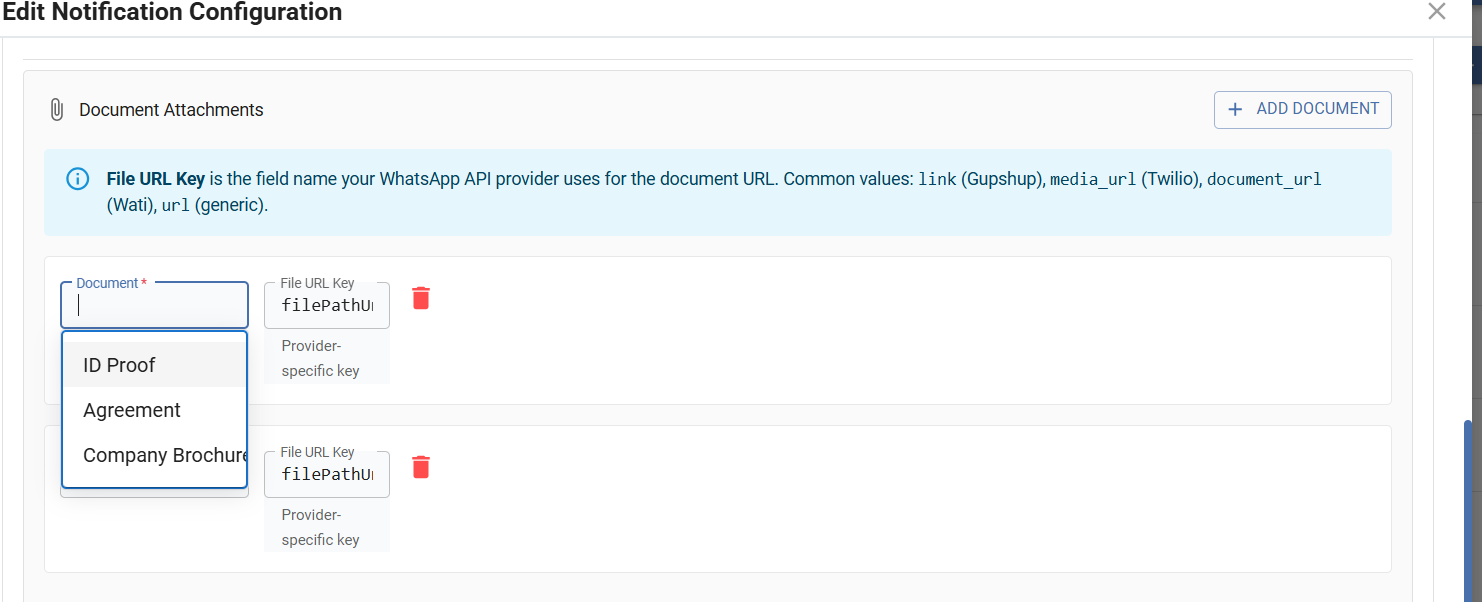
Additionally, users can send notifications to contact persons by attaching named documents using a file path URL provided by a third-party source. The feature is also available in the mobile application.
Functionality
1. Named Document Configuration (Master Setup)
- Navigate to Administration → Configuration → Named Document Config
- Select the module (e.g., Enquiry, Company, Support, etc.)
- Add new named document types or delete existing ones if not in use
- Supported modules: Enquiry, Support, Task, Contact, Organisation, Executive, Company, Product, Contract
2. Document Attachment in Forms
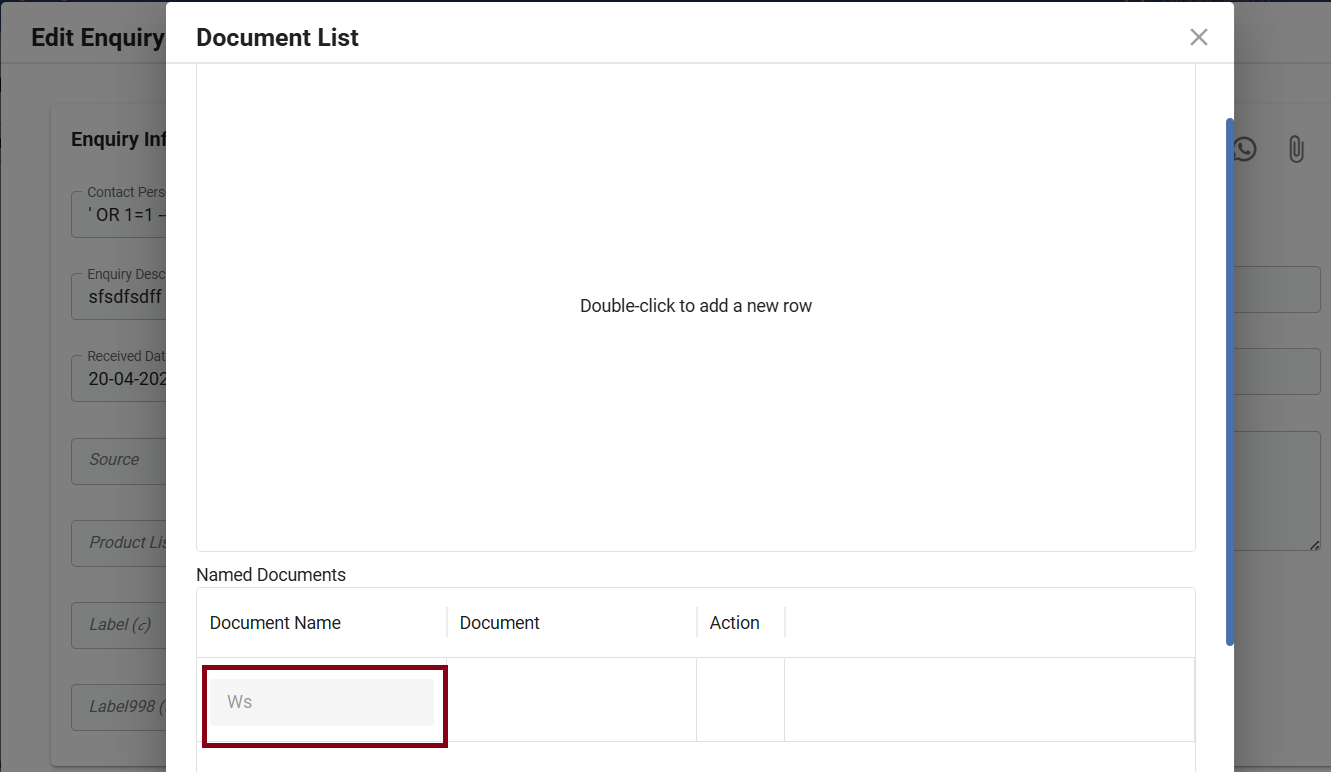
- While creating or editing records, user can select from predefined Named Documents
- Attach documents using the configured document type
- Ensures standardization of document naming across the system
3. Notification with Document (URL-Based)
- Users can send documents to contact persons directly without manual file uploads
- User provides a file path URL (from third-party provider) along with document type in notification configuration for Email or WhatsApp
- System sends notification with the document link
Example
Use Case: Enquiry Document Sharing
- Admin creates named documents under Enquiry: ID Proof, Agreement
- While setting an Enquiry: The user selects "ID Proof" as a named document (ensure that a file is attached to the selected named document in its associated form) and provides a third-party file URL (e.g., from document storage service)
- User sends notification to customer: Customer receives link to the document
Pipeline & Stage Update in Call Explorer Forms
EnhancementUsers can now view and modify Pipeline and Stage directly within Status Update and Assign Call forms in Call Explorer across web and mobile platforms.
Overview
The Call Explorer module has been enhanced to provide greater flexibility in managing Enquiry and Support workflows. Previously, pipeline and stage transitions were limited or not directly editable within certain actions.
With this update, the Pipeline and Stage fields are now visible, enabled, and editable within both the Status Update Form and Assign Call Form for Enquiry and Support entities. This enhancement is also implemented in the mobile application, ensuring consistent functionality across platforms.
Functionality
- While updating status or using Assign Call, users can directly move the record across pipelines and stages
- Same functionality available in mobile app: Pipeline and Stage fields are visible and editable
- Users can update workflow on the go
Example
Use Case: Enquiry Follow-up via Call Explorer
- User opens Call Explorer
- Selects an Enquiry and clicks Assign Call
- In the form: Assigns call to Sales Executive, changes Pipeline to "Sales Pipeline", updates Stage to "Interested"
- On submission: Enquiry is updated with new pipeline and stage
Pipeline & Stage Fields in Task Form
EnhancementPipeline and Stage fields are now available in Task forms, with conditional visibility based on task source (manual vs. integration).
Overview
The Task module has been enhanced to include Pipeline and Stage fields within the Task form, enabling better workflow tracking and alignment with business processes.
This enhancement allows users to associate tasks with specific pipelines and stages when tasks are created manually. However, for tasks created via integration sources, these fields are not displayed to maintain data consistency and avoid conflicts with external systems.
Functionality
1. Availability of Fields
- Pipeline and Stage fields are now added to the Task Form
- Applicable only when a task is created manually within the system
2. Conditional Visibility (Integration-Based Behavior)
- If the task is created via integration (through Enquiry/Support/Contract) or via Task Bucket: Pipeline and Stage fields will NOT be visible
- Ensures external data structure is preserved and no unintended modification of workflow fields
3. Manual Task Behavior
- Users can select a Pipeline and choose a Stage based on selected pipeline
- Helps in tracking task progress and aligning tasks with business workflows
Example
Use Case: Task Creation (Manual vs Integration)
- User creates a task manually in the system
- In Task Form: Selects Pipeline → Sales Pipeline, Selects Stage → Follow-up
- Saves the task — task is created with selected pipeline and stage
- Another task is created through Enquiry/Support/Contract/Task Bucket [Integrated]
- User opens this task: Pipeline and Stage fields are not visible
- Task follows the external system's structure — user cannot modify workflow fields for this task
Recurring Task
NewEnable creation of automated recurring tasks at defined intervals with centralized configuration and full lifecycle management.
Overview
The Task Recurring module allows users to create tasks that repeat automatically based on a defined schedule. This eliminates the need to manually create repetitive tasks and ensures consistency in routine operations.
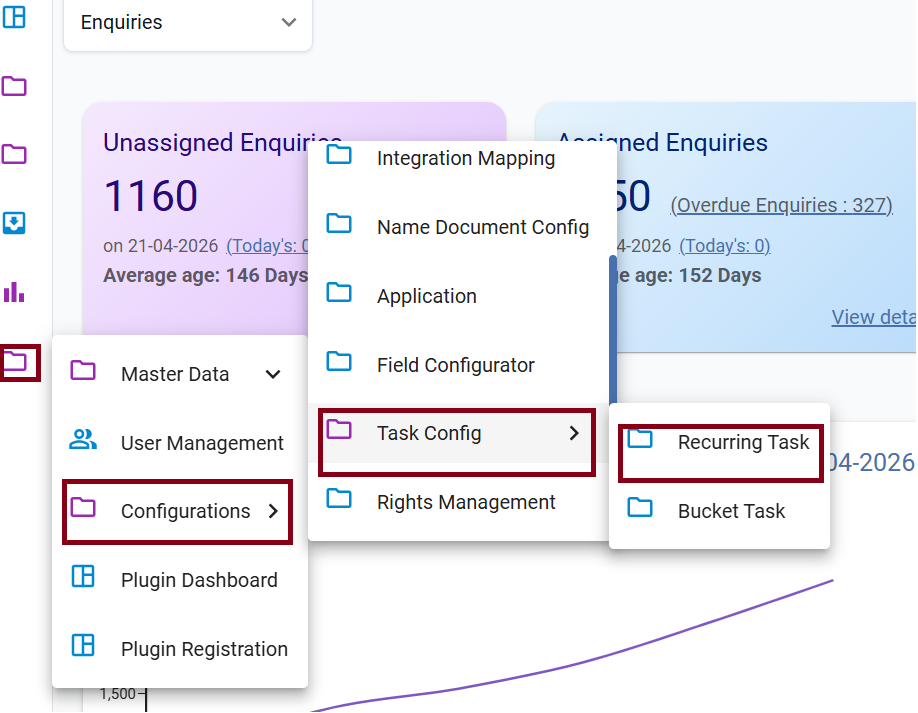
A dedicated Recurring Task Master is introduced where users can add new recurring task configurations, edit existing ones, and delete configurations when no longer needed.
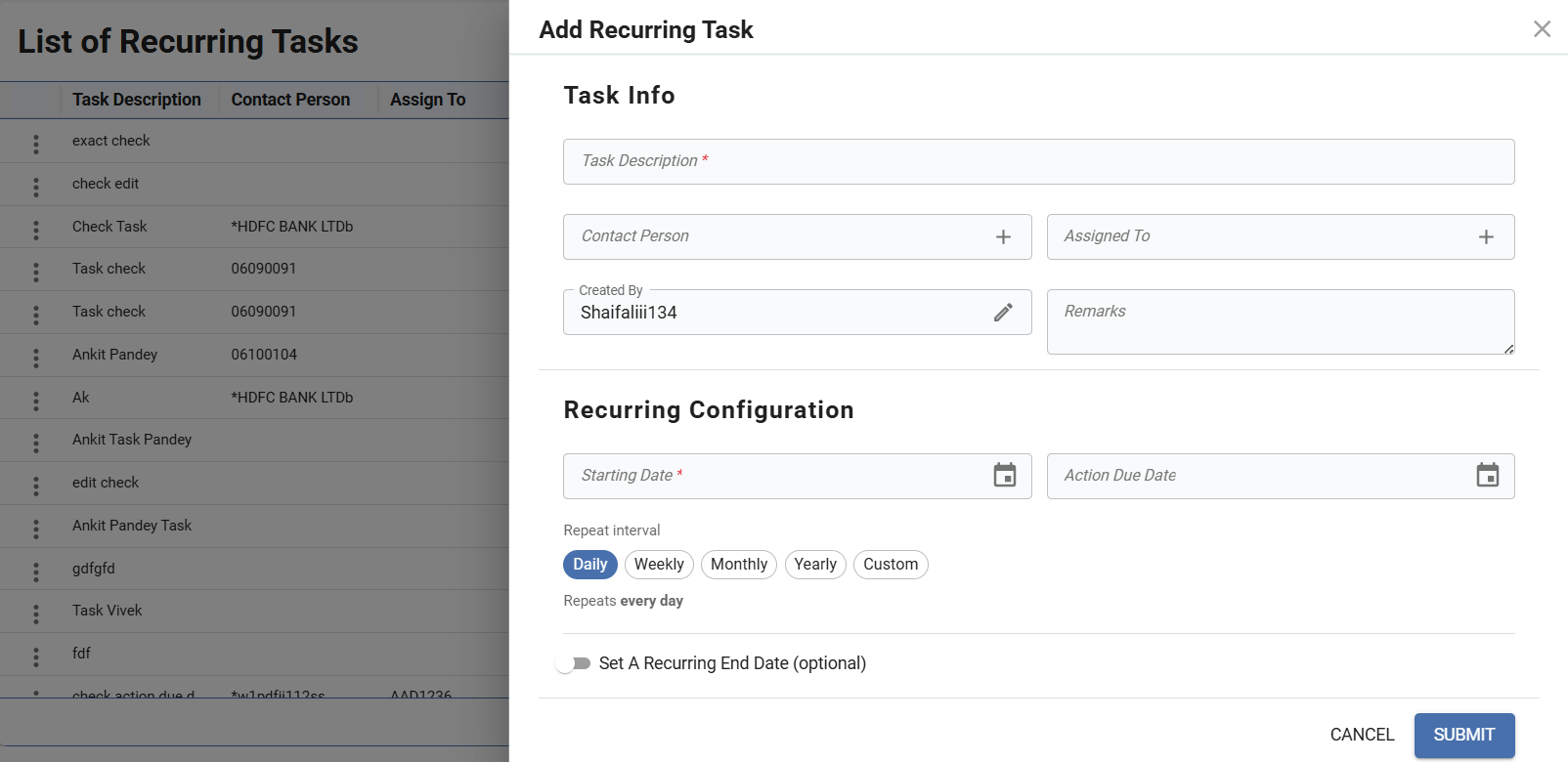
Each recurring task form includes standard task details along with Start Date and End Date, defining the duration of recurrence. Once configured, tasks are automatically generated at specified intervals and behave like normal tasks within the system. These generated tasks are:
- Visible in the Task entity
- Can be assigned or reassigned
- Can be updated via Call Explorer (Assign Call / Status Update)
Functionality
1. Recurring Task Master
- Central configuration for managing recurring tasks
- Users can create new recurring task setups, edit existing configurations, and delete recurring task entries
2. Recurring Task Form Fields
- Standard task fields: Description, Assign To, Remarks
- Start Date → When recurrence begins
- End Date → When recurrence stops
- Repetition Pattern → Defines frequency (e.g., daily, weekly, monthly, yearly)
Example
Use Case: Daily Follow-Up Task
- User creates a recurring task: Description: "Follow up with customer", Assign To: Sales Executive, Start Date: 1st April, End Date: 10th April, Repetition: Daily
- System automatically generates 10 tasks (one for each day from April 1 to April 10)
- Each task: Appears in Task entity, can be updated via Call Explorer, can be marked as completed independently
Sign Up & Invitation Management in Mobile Application
EnhancementUsers can now complete sign-up and accept or reject invitations directly from the mobile application.
Overview
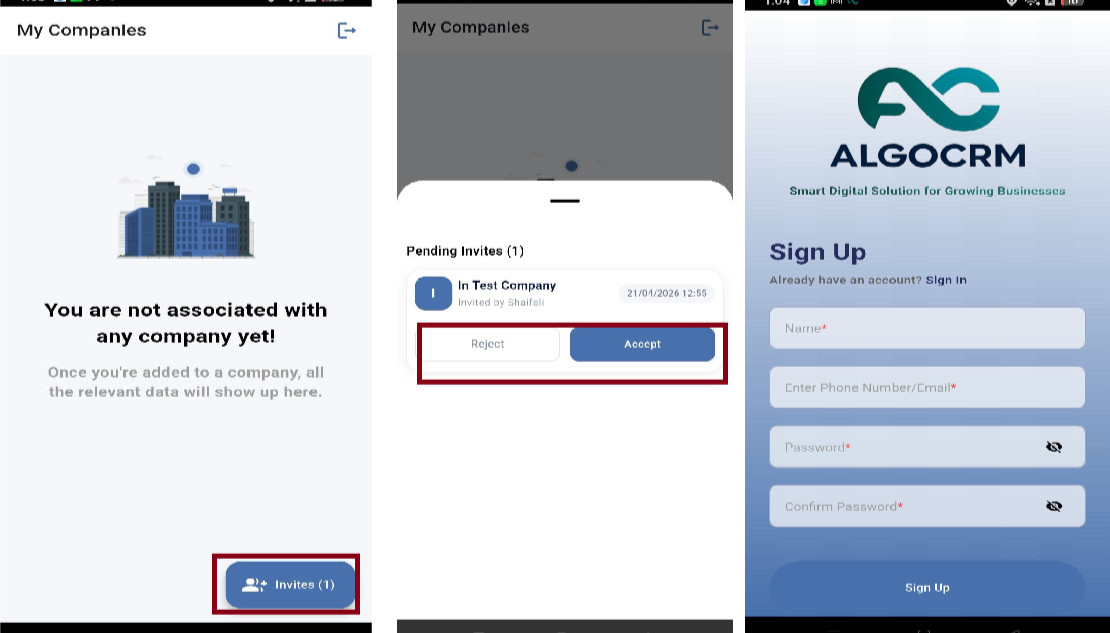
The Sign Up and Invitation Management features, previously available only on the web platform, are now extended to the mobile application. This enhancement allows users to seamlessly register and respond to invitations (accept/reject) directly from their mobile devices.
Functionality
- New users can sign up via the mobile app
- Invited users can accept or reject invitations without needing to access the web platform
- Ensures faster onboarding and improved accessibility
- Brings consistency across platforms — users can manage account access and onboarding workflows anytime, anywhere
Show Unassigned Records to Department Executives
EnhancementEnable visibility of unassigned Enquiry and Support records to all executives of a selected department through Application Configuration.
Overview
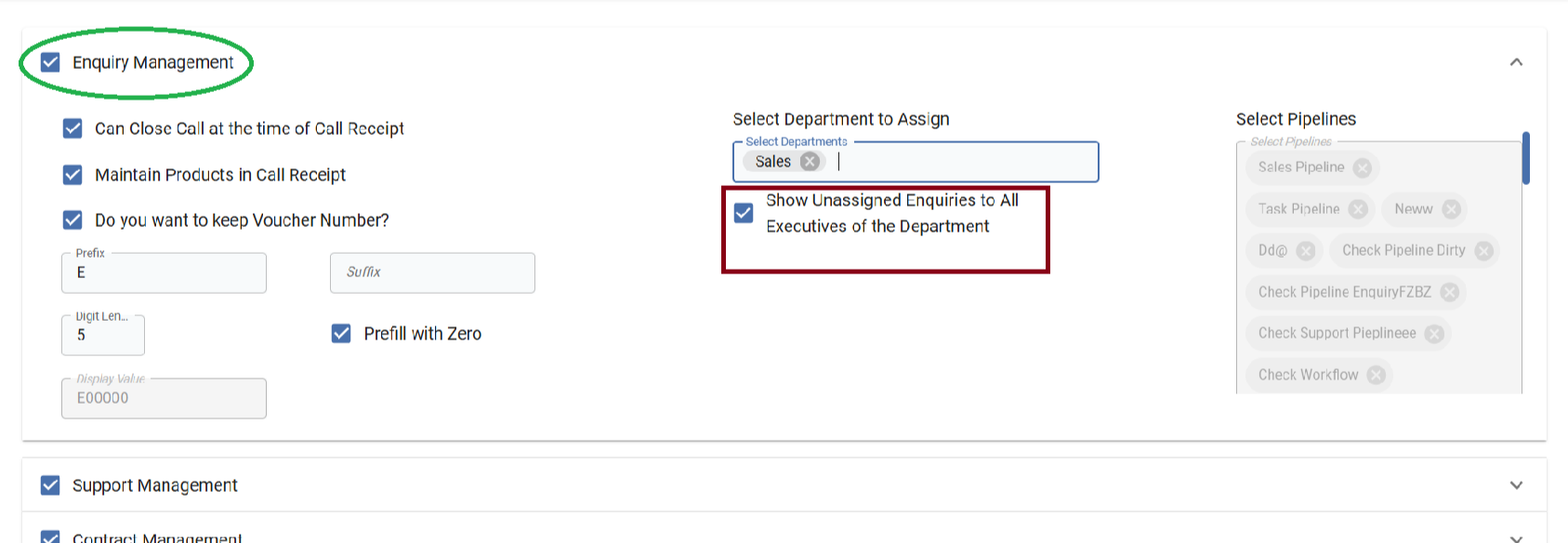
A new checkbox "Show Unassigned Enquiries to All Executives of the Department" has been introduced in Application Configuration under: Administration → Configuration → Application.
This feature allows organizations to control the visibility of unassigned Enquiry and Support tickets. When enabled, all unassigned records become visible to executives belonging to the selected department, improving transparency and ensuring quicker action on unattended records.
Functionality
Configuration Setup
- Navigate to Administration → Configuration → Application
- Locate the checkbox: "Show Unassigned Enquiries to All Executives of the Department"
- Applicable for both Enquiry and Support
Working Behavior
- When checkbox is enabled: all unassigned records (Enquiry/Support) become visible to all executives of the selected department
- When checkbox is disabled: unassigned records are not visible to all executives — visibility remains restricted as per existing logic
Example
Use Case: Enquiry Visibility
- Admin enables the checkbox for Enquiry
- Selects Sales Department
- New Enquiries are created but remain unassigned
- All executives in Sales Department: Can view these unassigned enquiries and can take action accordingly
Success Rate in Pipeline Stage Configuration
NewDefine stage-wise success probability in pipeline configuration to track and evaluate the likelihood of ticket conversion.
Overview
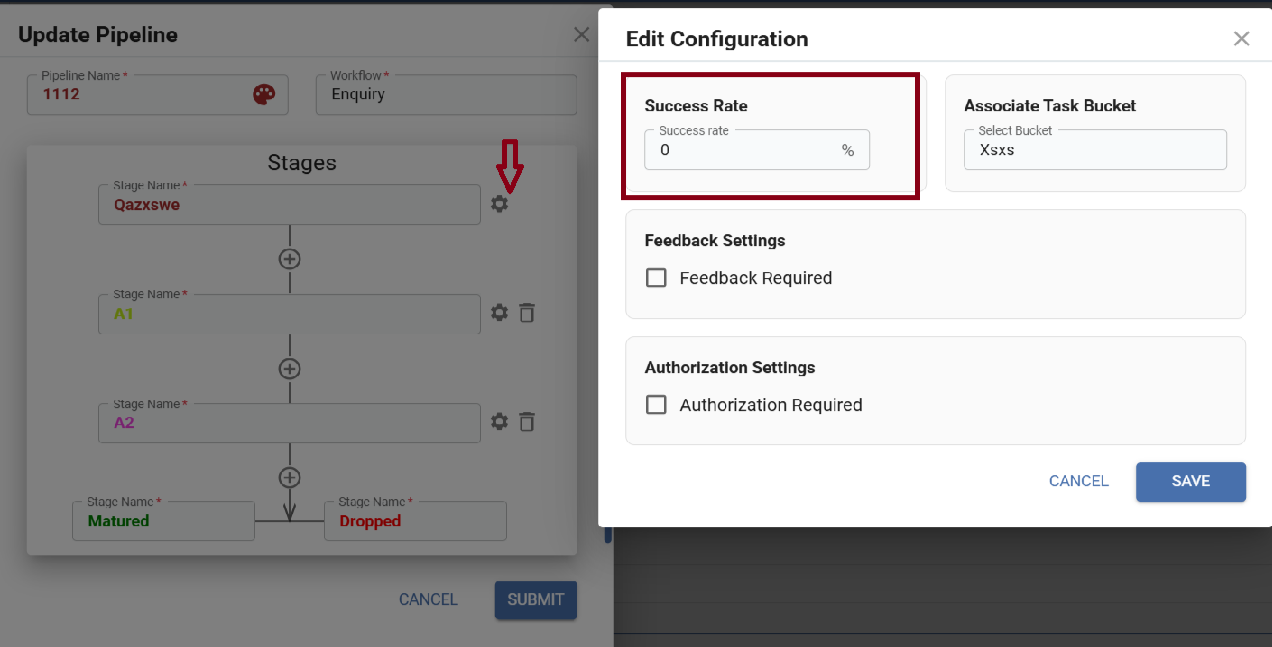
A new field "Success Rate" has been introduced in Pipeline Stage Configuration to represent the probability of a ticket (Enquiry/Support) reaching a successful outcome.
This value is configured stage-wise and reflects how close a stage is to a final outcome such as Mature or Dropped. The success rate is designed to follow an increasing order across stages, indicating progressive advancement toward conversion or resolution. This enhancement helps in better pipeline analysis, forecasting, and performance tracking.
Functionality
- Success Rate (%) field available in Pipeline Stage Configuration
- Each stage can be assigned a success probability
- Success Rate must be progressively increasing from initial to final stages
- Prevents inconsistent probability assignment and ensures logical workflow progression
Example
Use Case: Sales Pipeline
- New Lead → 10% success rate
- Contacted → 30% success rate
- Interested → 60% success rate
- Negotiation → 80% success rate
- Mature (Closed) → 100% success rate
Flow
- An Enquiry starts at New Lead → 10% success probability
- Moves to Interested → 60% probability
- Reaches Negotiation → 80% probability
- Finally marked Mature → 100% success
Mobile Application UI Enhancement
EnhancementImproved user interface in the mobile application for better usability, navigation, and overall user experience.
Overview
The mobile application has undergone a UI enhancement to provide a more intuitive, clean, and user-friendly experience. This update focuses on improving the overall look and feel of the application while ensuring smoother navigation and better accessibility of features.
Key Improvements
- Refined layout and design structure for better visual clarity
- Enhanced accessibility of key features and actions
- Consistent design elements across different screens
Enhanced Owner-Based Reports (Enquiry & Support)
EnhancementOwner-based reports for Enquiry and Support now provide detailed closure insights by separating closed records into Matured and Dropped categories.
Overview
The Enquiry by Owners and Support by Owners reports have been enhanced to provide better visibility into closed records. Previously, the report displayed total Open and Closed counts. With this update, closed records are now further categorized into Matured and Dropped, offering clearer insights into outcomes.
Functionality
- Closed records are now split into: Matured (successfully completed/converted) and Dropped (unsuccessful or closed without completion)
- Applicable to both Enquiry by Owners Report and Support by Owners Report
- Provides more accurate performance tracking per executive