
CRM · Release Notes
What's New in v1.4.1
Welcome to the latest CRM release. This release introduces new modules and enhancements designed to improve usability, streamline operations, and provide better control over day-to-day activities.
Event (Contact & Contract)
NewEnables users to configure time-based notifications on date fields with flexible trigger conditions.
Overview
This module allows users to set notifications on date fields available in Contact and Contract, extending the existing functionality already present in the Enquiry, Support, and Task modules. Notifications can be triggered before, on, or after a selected date by defining an offset value in minutes, hours, or days. The configuration can be applied to both default and custom date fields.
If a 'before' trigger falls within 24 hours, the notification will be executed. Additionally, if the same date field is updated again within this 24-hour window, the system recalculates and triggers the notification again.
It helps users stay updated on important dates like follow-ups, contract expiry, or customer interactions.
Functionality
- Configure event notifications on date fields
- Select trigger timing: Before, On Time, or After
- Define offset value with unit: Minutes, Hours, or Days
- Apply configuration on default and custom date fields
Example
A sales executive sets a reminder 1 day before contract expiry → ensures timely renewal discussion with the client.
Recurring Event
NewAllows users to automate repeated notifications based on defined intervals and end conditions.
Applicable Modules
- Contact
- Contract
- Enquiry
- Support
- Task
Overview
This module enables users to make event notifications recurring by turning ON the 'Make Recurring' option. Once enabled, users can define a recurring interval (in Days, Weeks, Months or Years) and optionally set an end condition. It reduces manual effort for repeated tasks and ensures consistent follow-ups.
Functionality
Recurring behavior is calculated based on the trigger time defined in the event. The system continues to generate notifications at the defined interval, and the end date is derived by adding the specified duration to the trigger time. For example, if the trigger starts on 20 March and the end is set to after 6 days, notifications will continue until 26 March.
Date Type Behavior
- Date Field (Only Date): Recurring will NOT trigger for the current date — only future dates.
- Date-Time Field: Recurring CAN trigger on the same date if the time is still in the future.
Example
A support agent sets a daily reminder for 5 days on an unresolved ticket → ensures regular follow-up until closure.
Custom Master Configuration
NewProvides capability to create and manage dynamic master data for use across forms.
Overview
This feature enables users to create and manage Custom Masters based on their business needs. These custom masters can be integrated into existing forms, allowing dynamic and flexible data management similar to system-defined masters.
Functionality
- Users can create Custom Masters as per requirement
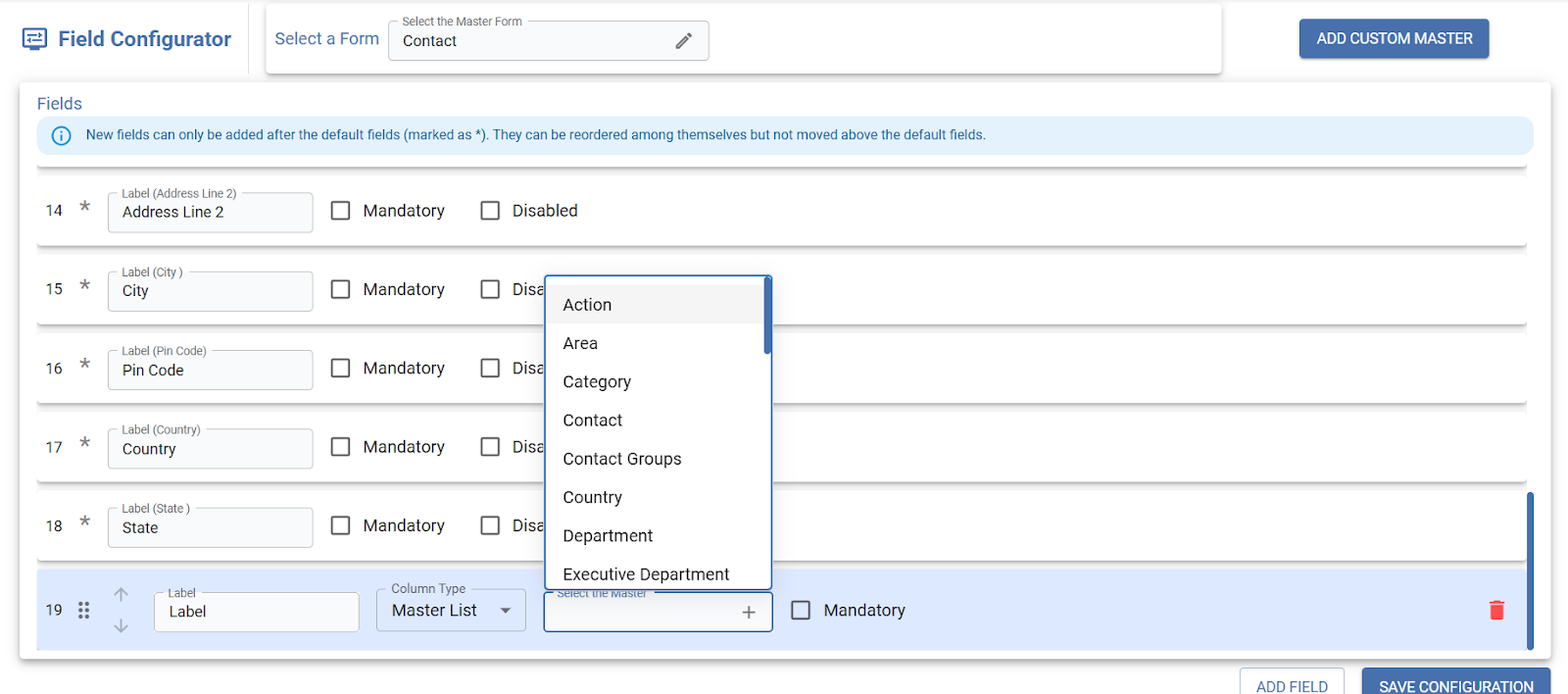
- Custom masters can be added to forms via Field Configuration
- While configuring a field, selecting 'Master Type' displays default system masters and user-created custom masters
- Custom masters behave like system masters, supporting multiple entries
- A dedicated Custom Master page allows users to add and manage entries
- The Custom Master option is available in Menu Bar → Administration → Master → Custom Master
- On hover: Displays list of created custom masters. If no custom master exists, no options are shown
- Once created, the custom master becomes available in dropdowns during field configuration
- Any updates to custom master entries are reflected wherever the master is used

Example
A company creates a custom master 'Lead Source' with entries like Website, Referral, Campaign → helps track where leads are coming from.
Task Reports (Reports Menu)
NewEnables centralized tracking and reporting of tasks, extending the existing reporting functionality already available for Enquiry and Support modules.
Overview
Introduced Task Reports under the Reports menu for centralized task tracking, extending the existing reporting functionality already available for Enquiry and Support modules.
Functionality
- Provides a structured view of tasks categorized into: Unassigned, Assigned & Completed.
- Unassigned Tasks – On hover, expands to show Today’s Unassigned Tasks and All Unassigned Tasks.
- Assigned Tasks – On hover, expands to show Overdue Tasks, Today’s Assigned Tasks, and All Assigned Tasks.
- Completed Tasks – On hover, expands to show Today’s Completed Tasks and All Completed Tasks (last 6 months data up to the current date).
- Report reflects data consistent with the Dashboard, ensuring uniformity across the system
Enquiry Upload (Bulk Data Import)
NewAllows users to upload and import large volumes of enquiry data efficiently through bulk file upload.
Overview
Introduced 'Upload' functionality in Enquiry to enable bulk data import via Excel. It allows employees to create multiple enquiry tickets in one go, improving efficiency.
Functionality
- On clicking the Upload icon, a 'Download Sample' option is available, Users can download a predefined Excel template
- The sample file contains all existing fields from the Enquiry Master, ensuring the correct structure and format is followed while minimizing data entry errors.
- Users can fill in enquiry data in the sample file and upload to create bulk enquiry records
IndiaMART Integration
IntegrationAutomatically captures IndiaMART leads into the CRM Enquiry module using API and webhook configuration.
Overview
The IndiaMART Integration feature enables seamless capture of leads from IndiaMART directly into the CRM Enquiry module. This enhancement helps streamline lead management by automatically converting incoming IndiaMART enquiries into CRM records, eliminating manual data entry and improving response efficiency.
Functionality
- A new Plugin Registration option is available in the menu bar for integration setup
- Within Plugin Registration, users can access the IndiaMART Utility section
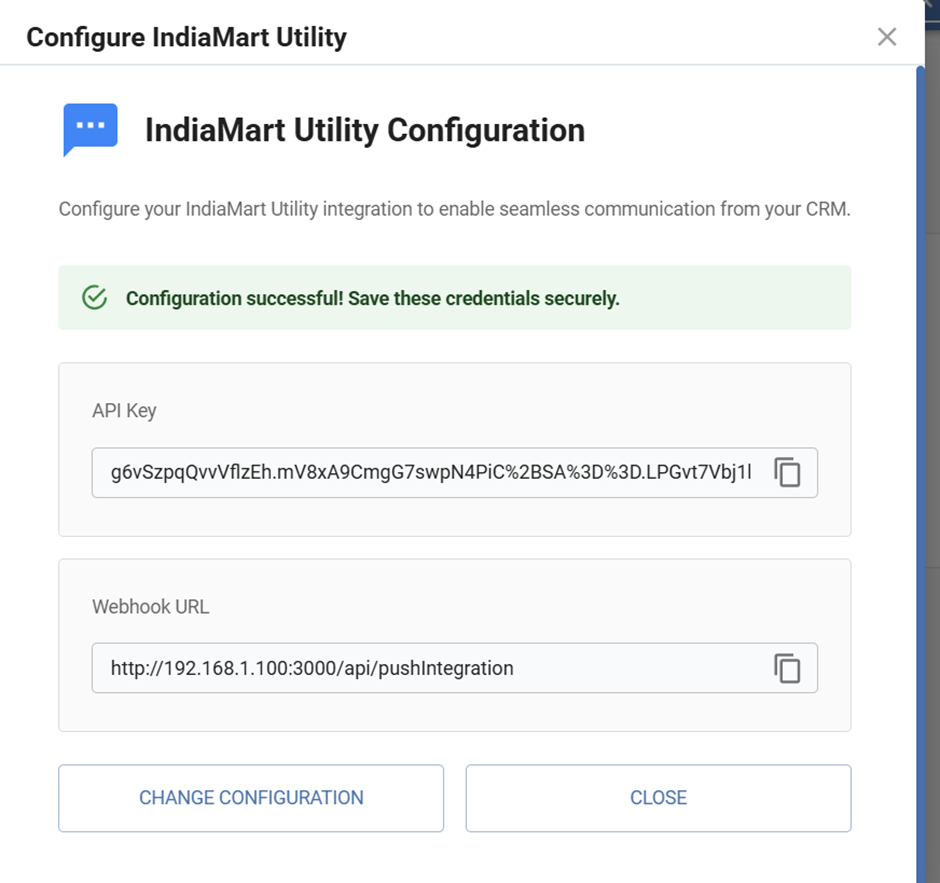
- The IndiaMART Utility allows users to: Generate a unique API Key and obtain the Webhook URL required for integration
- These credentials (Webhook URL and API Key) are used to configure the IndiaMART lead panel.
- Integration works by passing the API key as a parameter: webhook_URL?apikey=XXX
- Once configured, all incoming leads from IndiaMART are automatically pushed into CRM as Enquiry records
- This ensures: Real-time lead capture, Reduced manual effort & Improved lead tracking and follow-up
Example
- Suppose a user generates the following details from IndiaMART Utility through crm → Webhook URL: https://crm.company.com/api/indiamart, API Key: g6vSzpqQvvVflzEh.mV8xA9CmgG7swpN4PiC%2BSA%3D%3D
- The final webhook configured in IndiaMART will be: https://crm.company.com/api/indiamart?apikey=g6vSzpqQvvVflzEh.mV8xA9CmgG7swpN4PiC%2BSA%3D%3D
- When a customer submits an enquiry on IndiaMART: The data is sent to the above webhookURL, and CRM automatically creates a new Enquiry record with the received lead details
Custom Field Configuration for Contract
EnhancementAllows users to create and manage custom fields in the Contract module, extending existing functionality from other masters.
Overview
The Custom Field Configuration feature has been extended to include the Contract module. Users can now create and manage custom fields within the Contract master, similar to the existing functionality available for Enquiry, Support, and other masters. This enhancement provides greater flexibility to capture additional, user-defined information specific to contracts.
Custom Field configuration for the Contract module is now extended to the Mobile Application, ensuring users can view and use contract-specific custom fields seamlessly across web and mobile platforms.
Functionality
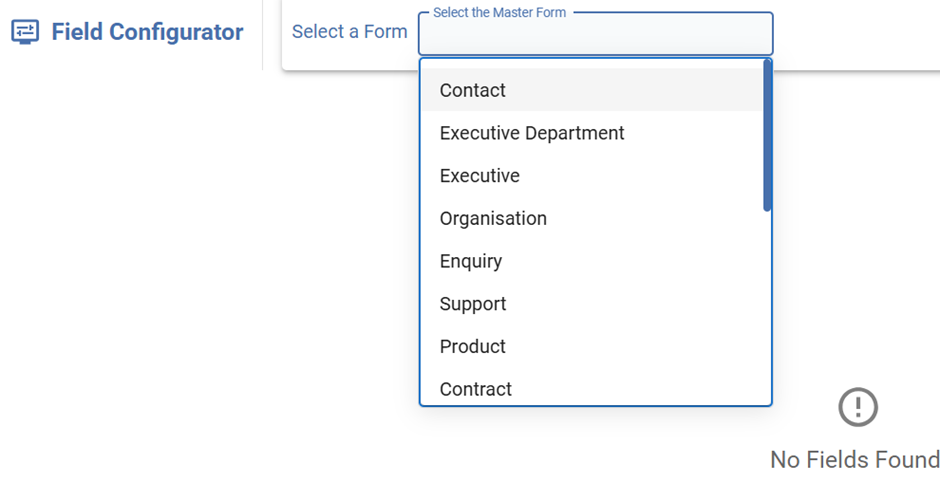
- In the Field Configuration section, the Contract module has been added to the Select Master Form dropdown.
- Previously, custom field configuration was available for Enquiry, Support, and other masters; now it is extended to Contract as well.
- Users can now: Create new custom fields for the Contract module,Define field types (e.g., text, date, dropdown, etc.), Set field properties such as mandatory, default values, and validations and Configure field placement and visibility as per business requirements.
- The functionality remains consistent with existing masters, ensuring: A uniform user experience, Easy adoption without additional training and Flexibility to capture contract-specific data.
- This enhancement helps users: Customize the Contract module based on business needs, Store additional contract-related information and Improve data management and reporting.
Example
A user wants to track Contract Renewal Date in the Contract module. Using Field Configuration: select Contract from the master dropdown, add a custom field with Field Name: 'Contract Renewal Date' and Type: Date.
Action Cost in Action Master
EnhancementIntroduces an Action Cost field to track expenses associated with actions in Enquiry and Support modules.
Overview
A new field 'Action Cost' has been introduced in the existing Action Master for Enquiry and Support modules. This enhancement allows users to define and track the cost associated with each action, enabling better monitoring of expenses incurred during various activities.
Functionality
- Action Cost field added in the Action Master for Enquiry and Support
- Accessible from all interfaces where the Action Taken field is available: Enquiry, Support, Status Update
- The Action Cost field enables: Capturing the monetary value associated with each action, Maintaining consistency across modules where actions are used and Easy updates and management of action-related costs
- Helps in tracking expenses at the action level and calculating total cost per enquiry and Improving cost analysis and reporting
Example
A user performs an action 'Site Visit' for a customer enquiry. While adding the action: Action Name: Site Visit, Action Cost: ₹500.
Contract Type Master
EnhancementEnables dynamic management of contract types through a master, replacing fixed predefined values.
Overview
A new Contract Type Master has been introduced to enhance flexibility in managing contract types. Previously, the Contract form contained two predefined dropdown values — AMC and Warranty. With this enhancement, these values are now managed through a dedicated master, allowing users to add and maintain additional contract types as per business requirements.
Functionality
- Existing values (AMC and Warranty) are available by default in the master
- Users can now add, edit, or manage new contract types
- Contract Type dropdown is now dynamically populated from the Contract Type Master, similar to other master-based fields
- Users can: Add new contract types as per their business needs, Modify existing values if required and Maintain consistency across all contract records
- This enhancement ensures: Centralized management of contract types, Improved flexibility and scalability and Consistent data usage across the system
Example
A company wants to introduce a new contract type 'Subscription'. After adding it to the Contract Type Master, the Contract Type dropdown will show: AMC, Warranty, and Subscription. Users can now select Subscription while creating or updating contracts.
Two-Factor Authentication (2FA)
SecurityAdds an extra security layer by requiring OTP verification when accessing company data.
Overview
A new security feature Two-Factor Authentication (2FA) has been introduced to enhance access control at the company level within the CRM. When enabled, users must verify their identity using an OTP while accessing a company, ensuring an additional layer of security beyond standard login.
This feature is now also available in the Mobile Application, providing consistent security across web and mobile platforms.
Functionality
- Enable 2FA option available under Menu Bar → Administration → Configurations → Application
- Can be configured only by Owner and Co-Owner
- Upon selecting a 2FA-enabled company, an OTP is sent to the user's registered Email ID and Mobile Number
- Access is granted only after successful OTP verification
- Prevents unauthorized access even after successful login thus enhancing company-level security by adding an extra verification layer before accessing sensitive company data
Example
- Owner enables 2FA in Application settings
- User logs in with Email/Mobile Number + Password
- User selects a company and receives an OTP on registered email or mobile
- User enters the OTP in the dialog box to gain access
Print Functionality for Support & Contract
EnhancementAllows users to generate and print formatted Support tickets and Contract records with customizable templates.
Overview
A new Print functionality has been introduced for Support and Contract forms, allowing users to generate and print submitted records. This feature enables users to obtain formatted printouts of Support tickets and Contract details for documentation and sharing purposes. The functionality is also extended to the Mobile Application, ensuring accessibility across platforms.This functionality was previously available for Quotation and is now extended to Support and Contract modules.
- Users can now: Submit Support and Contract forms and Generate and print the details of submitted records
- This feature is now also available in the Mobile Application, allowing users to print records directly from mobile devices
- New configuration section: Menu Bar → Administration → Configurations → Template Config → Support Config / Contract Config
- Only Owner / Co-Owner can configure print templates
- In configuration pages: edit Company Name and Address, define Terms and Conditions, select custom fields for print, upload Footer Image and Signature Image
- This ensures: Customizable print formats, Standardized documentation and Flexibility as per business requirements
Example
A user submits a Support Ticket and clicks Print. A formatted view is generated including Company Name & Address, Ticket Details, Selected Custom Fields, Terms & Conditions, and Signature. The user can print or save the document for records or sharing with the customer.
Plugin Dashboard
NewAllows background processing of file uploads with real-time status tracking without interrupting user activity.
Overview
A new Plugin Dashboard has been introduced to manage and monitor file upload activities across the system. This feature ensures that users can continue working without interruption while file uploads are processed in the background. It enhances system performance and provides clear visibility into the upload status.
Functionality
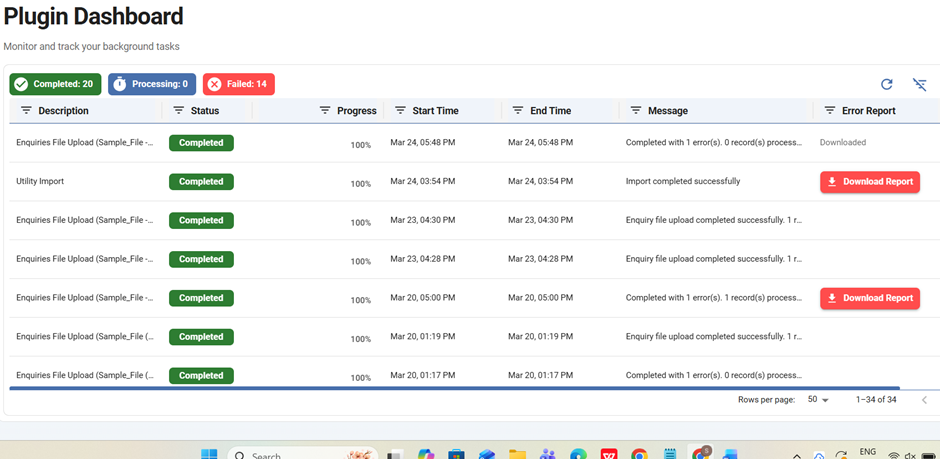
- The Plugin Dashboard handles file uploads in the background, allowing users to continue working on other tasks without page interruptions
- Dashboard displays upload status: Processing, Completed, or Failed
- In case of errors, users can download the Error Report and correct data for re-upload
- Only one file can be uploaded at a time per company
- No limit on the number of records within the uploaded file
Named Document
NewAllows users to link quotations in Enquiry/Support and upload product catalogs in the Product form for easy document management.
Overview
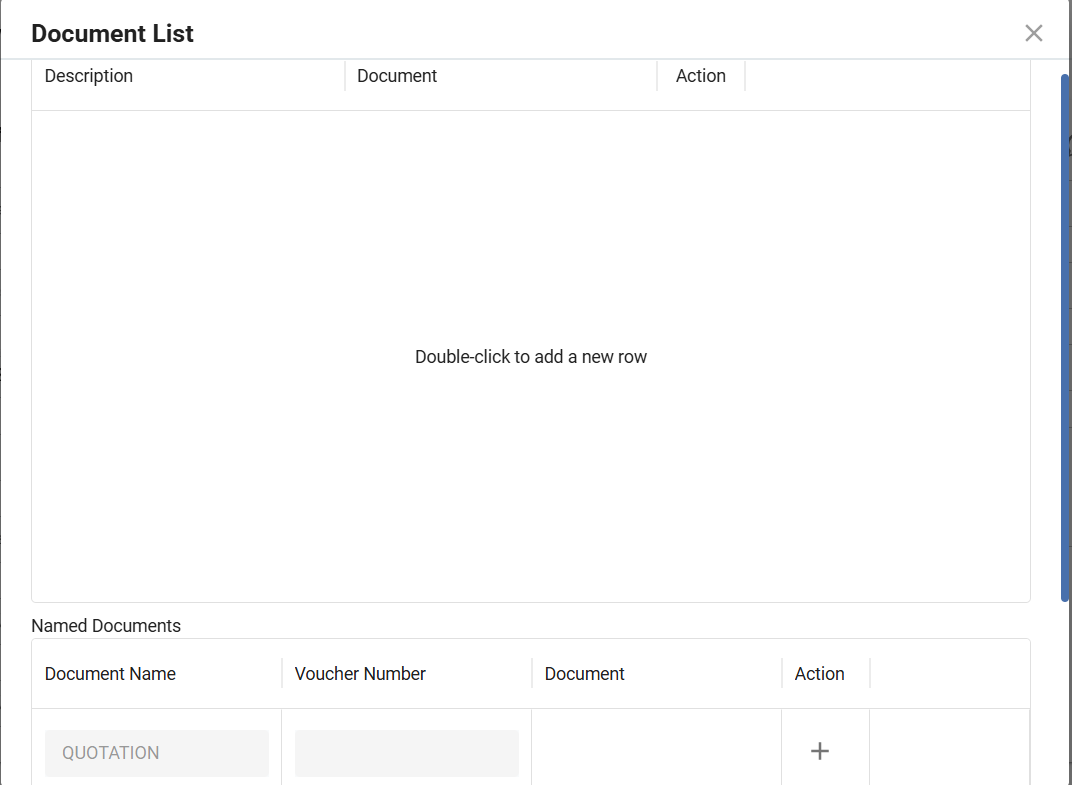
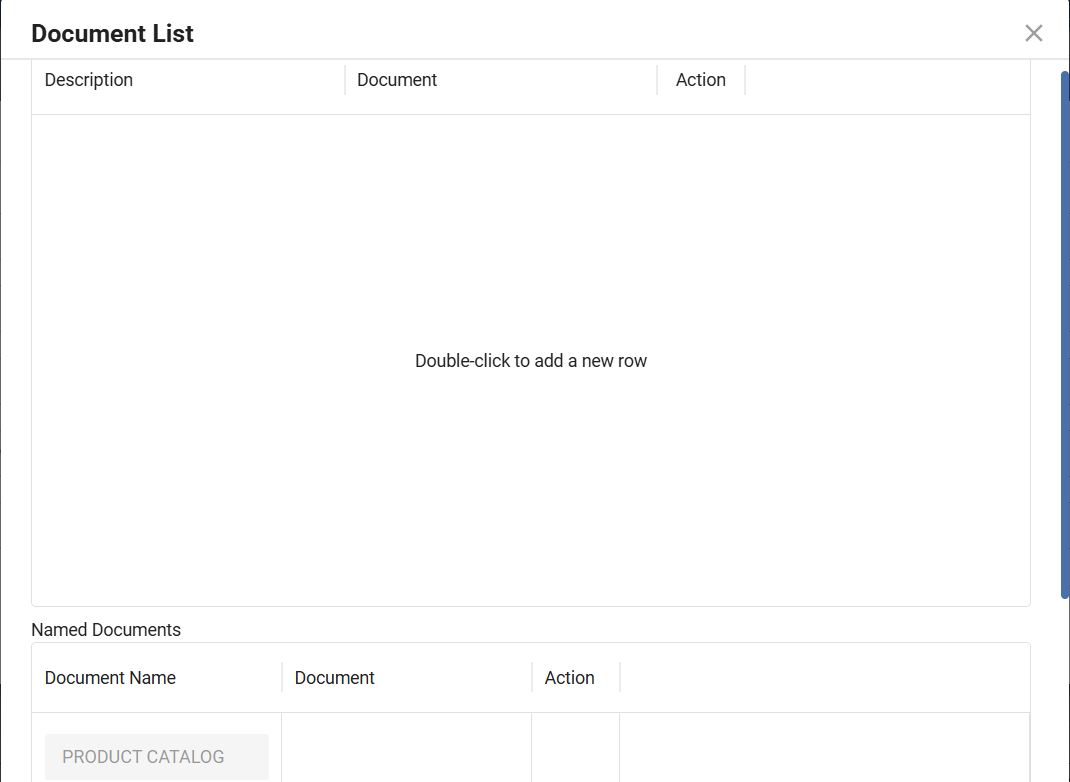
The Named Document feature has been introduced in the Enquiry and Support forms to streamline the association of relevant documents, such as Quotations, with tickets. Additionally, this feature is extended to the Product Form as Product Catalog, allowing users to upload and manage product-related documents. This enhancement improves document visibility, accessibility, and consistency across records
For Enquiry & Support (Quotation)
- A new Actions column is introduced in the Named Document section
- Clicking the '+' icon displays a list of quotations associated with the selected Contact Person
- If quotations exist for the contact, they are displayed with radio buttons for selection
- If no quotations are associated, the system displays 'No rows'
- A quotation already selected in another ticket (for the same contact person) appears disabled — prevents duplicate selection
For Product Form (Product Catalog)
- Users can upload Product Catalog files directly from their system
- The uploaded documents are associated with the respective product
- Enables easy access and sharing of product-related documents
Example
- A user creates a Support Ticket for a contact person
- In the Named Document → Actions column: User clicks on the “+” icon and System displays all quotations linked to that contact person
- Scenario 1:If quotations are available → user selects one using the radio button
- Scenario 2:If no quotations exist → system shows “No rows”
- Scenario 3:If a quotation is already linked to another ticket:It appears disabled and cannot be selected again
- Additionally: In the Product Form, a user uploads a Product Catalog file the document gets linked to the product for future reference